
Connections
The picker
Cmd/Ctrl+O (Ctrl+Shift+C in the Omarchy look) opens the picker with your
saved connections. Each row shows
the connection’s environment and when it was last used, and
Find connection… searches by name or by user@host:port/database.
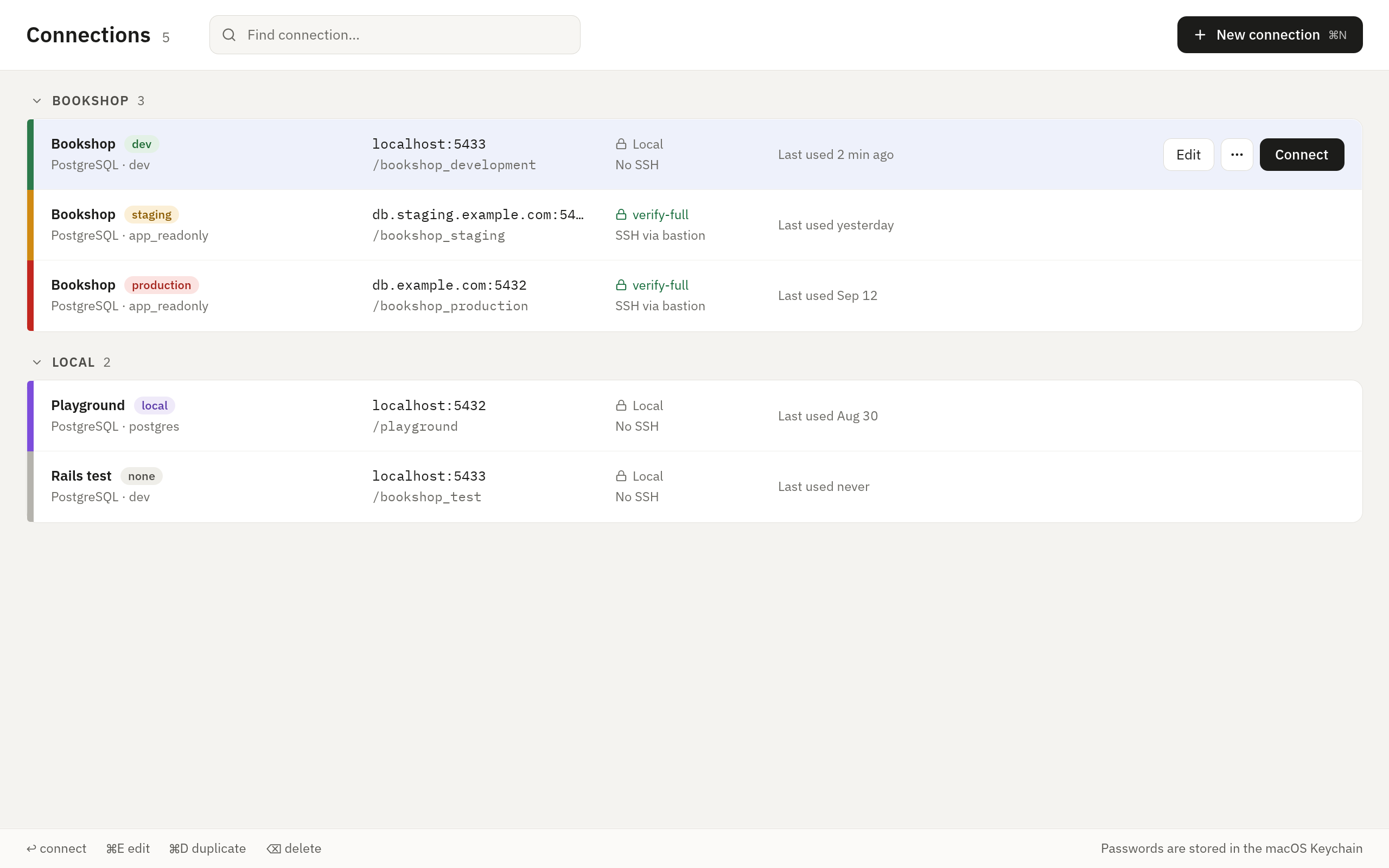
Connections with exactly the same name form a group under that name, which suits one database in several environments. The rest are listed under Local or Remote.
A connection can be open more than once. Enter shows a connection that is already open, and Shift+Enter opens it again.
Fields
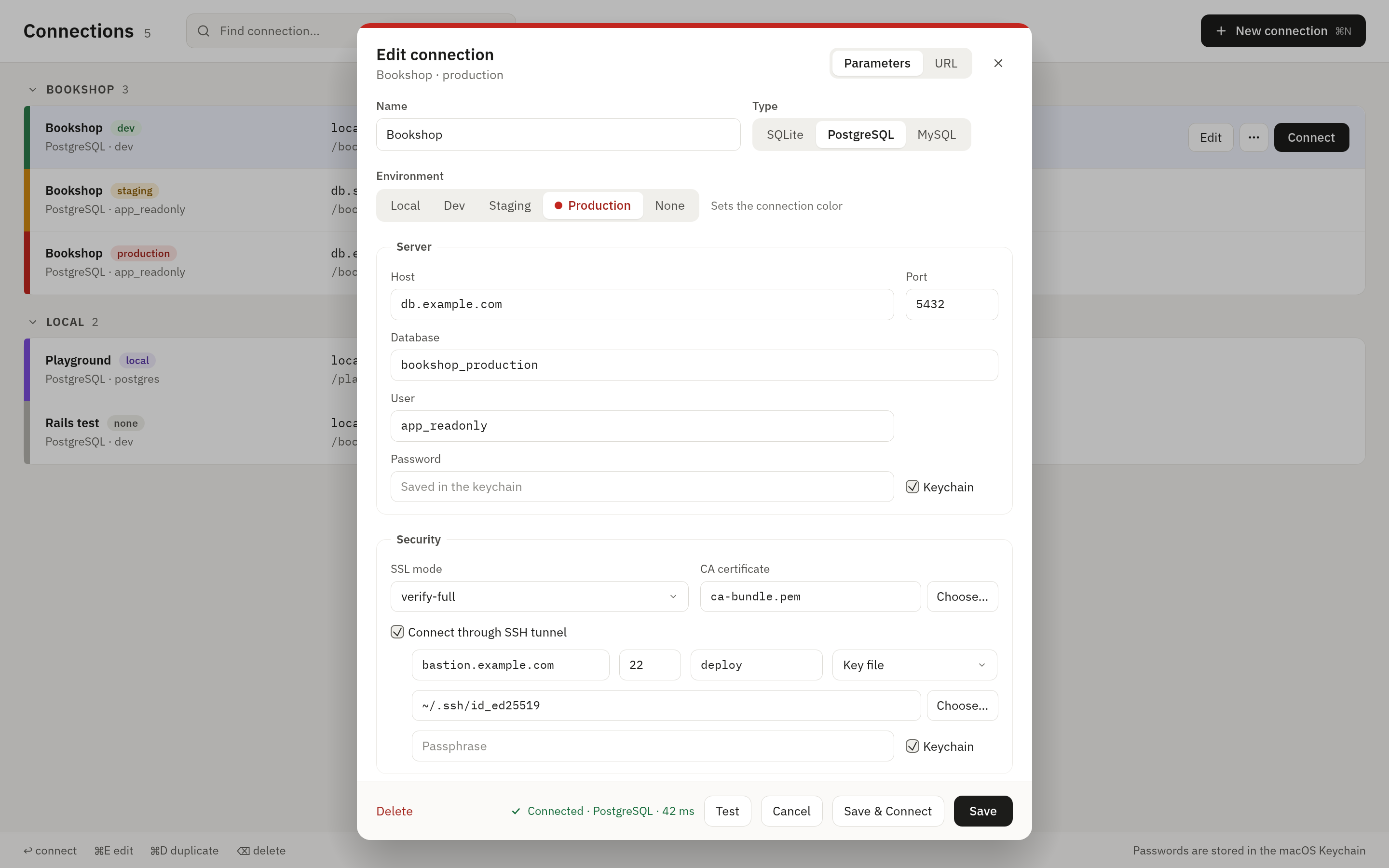
| Field | Notes |
|---|---|
| Name | Left empty, it becomes user@host:port/database or the file’s name |
| Type | SQLite, PostgreSQL or MySQL |
| Environment | local, dev, staging, production or none. Sets the connection’s color |
| File | SQLite only |
| Host, Port | The port defaults to 5432 for PostgreSQL and 3306 for MySQL |
| Database | Left empty, PostgreSQL uses the user’s name and MySQL selects no database |
| User, Password | See Passwords |
| SSL mode, CA certificate | See TLS |
| Connect through SSH tunnel | See SSH tunnels |
| Open read-only | See Open read-only |
| Agents | See Agents |
Test checks the connection without saving it.
Connection URLs
The URL tab of the dialog (u in the Omarchy look) takes a connection
URL and fills the fields from it. A password in the URL moves to the
password field.
postgres://app@db.example.com:5432/shop?sslmode=verify-full
mysql://app@127.0.0.1:3306/shop
sqlite:///home/me/data/shop.db
- The schemes are
postgres://,postgresql://,mysql://,mariadb://andsqlite:. sslmode(alsossl-modeorssl_mode) sets the SSL mode, andsslrootcert(alsossl-ca) the CA certificate. Other parameters are ignored.- A URL cannot be given on the command line.
TLS
The SSL modes are libpq’s:
| Mode | PostgreSQL | MySQL |
|---|---|---|
disable |
No TLS | No TLS |
prefer (the default) |
Encrypts when the server can. The certificate is not checked | The same |
require |
Encrypts. The certificate is not checked, unless you give a CA certificate | Encrypts. The certificate is not checked |
verify-ca |
Checks the certificate against your CA certificate, which is required | Not available yet |
verify-full |
Checks the certificate and the host name, against your CA certificate or the system’s | Checks the certificate and the host name, against your CA certificate or a built-in list of public CAs (not the system’s) |
In a URL, allow is read as prefer.
Unless the mode checks the certificate, someone on the network between
you and a remote server can read the password. To prevent that, use
verify-full or an SSH tunnel. The dialog warns you when this applies.
SSH tunnels
Tick Connect through SSH tunnel and Tabletist reaches the database through an SSH server. You can sign in to that server with:
- Password.
- Key file. An encrypted key asks for its passphrase.
- Agent. Your running SSH agent, including 1Password’s.
~/.ssh/config
Tabletist reads ~/.ssh/config. Type a host alias as the SSH host, or
pick one from the list, and the rest is filled in from the file. A value
you type wins over the file.
| Directive | Used for |
|---|---|
Host |
Aliases and patterns, with *, ? and ! |
HostName |
The server to connect to |
Port, User |
The port and the login name |
IdentityFile |
The key file. The first one is used |
IdentityAgent |
The agent’s socket. This is how 1Password is found |
Include |
Other files to read |
Without an IdentityAgent, the agent is the one in SSH_AUTH_SOCK. On
Windows it is the OpenSSH agent, then Pageant.
Match blocks are ignored. ProxyJump and ProxyCommand are not
supported yet: a host that needs one cannot be used for a tunnel.
Host keys
The first time you connect to an SSH server, Tabletist shows its key’s fingerprint and asks Trust this SSH host? Compare the fingerprint with the server’s before you trust it.
Trusted keys are kept in Tabletist’s own known_hosts.json, not in
OpenSSH’s known_hosts. If a server’s key changes later, Tabletist
refuses to connect, because that can mean someone is intercepting the
connection. If the key really did change:
- Quit Tabletist. It reads the file when it starts and writes it when you trust a host, so an edit made while it runs can be lost.
- Open
known_hosts.jsonand remove the server’s entry fromhosts. Keep the file valid JSON: the last entry has no comma after it. - Start Tabletist and connect. It asks about the new key.
If the file cannot be read, Tabletist leaves it as it is and trusts no new host until it is fixed.
Passwords
Passwords are never written to Tabletist’s own files. Each password field has a keyring checkbox:
- Ticked: the password is kept in the system keyring. That is the Keychain on macOS, Credential Manager on Windows, and the Secret Service (GNOME Keyring, KWallet) on Linux.
- Not ticked: Tabletist asks for the password when you connect, and remembers it only for that connection tab.
A password typed in the connection dialog goes to the keyring when you save the connection. One typed when Tabletist asks for it is saved only after the server accepted it. The same goes for an SSH password and a key’s passphrase.
When you edit a connection whose password is in the keyring, the
Password field is empty and says it is saved there. To connect without a
password (a server with trust or peer authentication), put the cursor in
that field and press Backspace or Delete: the note goes, and the
connection is saved as needing no password (password = "none"), with
its keyring entry deleted. Test then tries the server with no
password. Type a password instead to replace the saved one.
When the keyring has no password for a connection, Tabletist asks for
one. If you leave it blank and the server accepts that (trust or peer
authentication), the connection is saved as needing no password
(password = "none"), and Tabletist and agents connect without asking
from then on. Should the server start asking for a password, Tabletist
asks you for it again, and saves it in the keyring once it is accepted.
Agents
What AI agents may do on a connection, through tabletist mcp. Every
connection starts with agents Off: they do not see it at all.
Read lets them read it, in read-only transactions, while the agent
server is on.
- In the picker, the Agents column says each connection’s access, and its “…” menu changes it. Its Tables, columns and limits… opens the connection’s Agents section, and Show Agents tab shows its Agents tab.
- In the connection’s form, the Agents section has the access, Tables, Masked columns, Rows per answer (1 to 5000, 500 at first) and the Statement timeout in seconds (1 to 60, 10 at first).
- Tables is All, All except or Only. With All except,
agents may read every table but the ones listed; with Only, the ones
listed and no others, so that a table made later is hidden too. Add table… opens
a field for a name,
customersorsales.customers: Enter adds it and leaves the field open for the next, Escape closes the field, and × takes a name out. While a window of the connection is open, the field lists the tables its sidebar has loaded that match what you type: Up and Down move in the list, and Enter, Tab or a click adds the one chosen. A listed name that the loaded schemas show is not a table is marked not in this database, and under All except agents may not use the connection until it is taken out or put right. A name in a schema the sidebar has not loaded is not marked. A name still in the field when you save, or choose another of the three, is added with the rest. Each of the two lists is kept while you try the other, and what you save is the one chosen. Agents are told the names in the list, never what is in the hidden tables: not their rows, their columns, or the views over them. A function from an extension can still read them; for strict isolation, use a database user without access. - Masked columns lists the columns whose values agents get as
•••. Add column… opens a field for a table and a column,orders.emailorsales.orders.email, which works as Add table…’s does: Enter adds it, Escape closes the field, × takes one out, and one still in the field when you save is added. While a window of the connection is open, the field lists the tables its sidebar has loaded; Enter or a click on one puts it in the field, and the list then shows its columns, which the window is asked for. A masked column that the loaded schemas and fetched columns show is not in the database is marked not in this database, and agents may not use the connection until it is taken out or put right. Agents see a masked column’s name and type, and a query that filters, joins, sorts or computes with it is refused, in any table with a column of that name. - If
connections.tomlhides more tables while the form is open, saving a change of yours to them is refused, and the form shows them as they are now, for you to make your change again. A change in the file that hides less is held until you answer it, and is not in force: a save that changes the tables goes through over it, and one that leaves them as shown keeps it, still held. Masked columns are kept the same way: if the file masks more while the form is open, saving a change of yours to them is refused and the form shows them as they are now. - An Agents tab that says agents can’t use a connection has Allow agents…, which opens that section with Read chosen. Nothing changes until you save.
The file keeps this in the connection’s [connections.agents] table: see
Settings and Files.
Open read-only
A connection with Open read-only ticked blocks every write from Tabletist: the session itself is read-only on PostgreSQL and MySQL, and a SQLite file is opened read-only.
The box is ticked by default for production, and not for the other environments. Turn it off to edit. A change applies from the next time you connect. Where a new production connection’s box starts is New production connections open read-only in Settings.
Production stays careful with the box off too:
- A save asks first, with its statements on screen.
- The SQL editor still runs read-only.