Tabletist on macOS
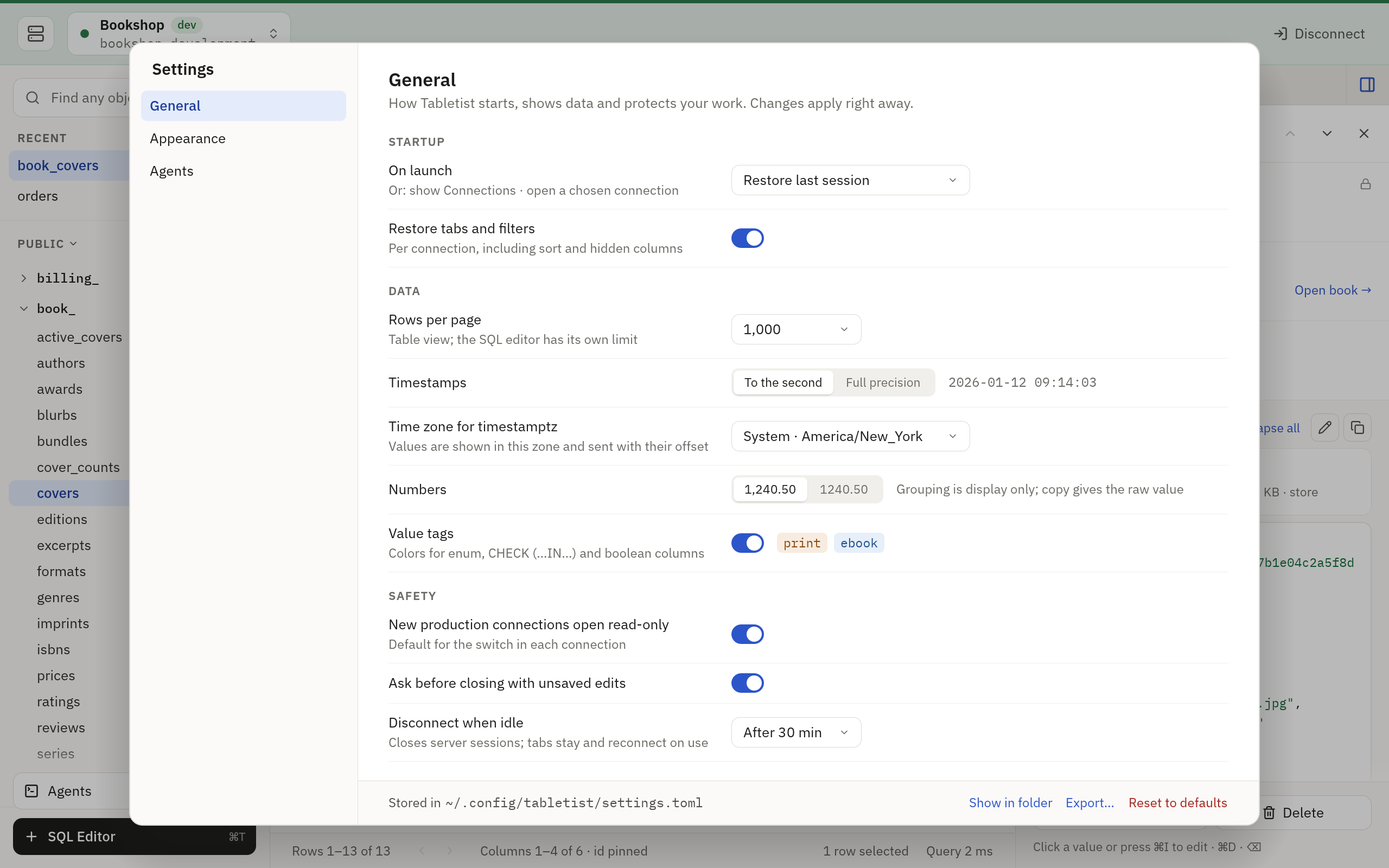
On a Mac, Tabletist has the macOS look: rounded controls, IBM Plex Sans for the interface and IBM Plex Mono for data. There is no setting that switches to another look.
Install
Tabletist needs macOS 11 or later. One download runs on both Apple Silicon and Intel. The steps, and what to do when macOS blocks the first launch, are on the Download page.
The window
- The title bar holds your connections. There is no separate title: the chips of the open connections sit beside the window’s buttons, as tabs do in Safari. In full screen the window’s buttons are hidden and the bar takes the whole width.
- A window with no tab open shows the start screen. One line says which database you are on, which server serves it and how many tables and views it lists (a production connection gets its red strip there, with Read-only where it is). Under it, the five tables, views and SQL editors you opened last on this connection, newest first; Clear empties the list. On your first visit the screen lists the largest tables instead, from the database’s own statistics, so nothing is queried (a SQLite file lists its tables by name). Then three buttons: New SQL query, Switch database and Edit connection. Closing the last tab brings the screen back.
- A search field sits under the connection line. Start typing anywhere on the screen and what you type goes into it; the recents give way to the tables and views that match, grouped, with the first picked and the matched letters marked. It is the same search as Quick open (Cmd+P), which opens it from anywhere. Up and Down move the pick, Return opens it, Option+Return opens it in a new SQL editor reading its first rows, and Esc clears the search and brings the recents back.
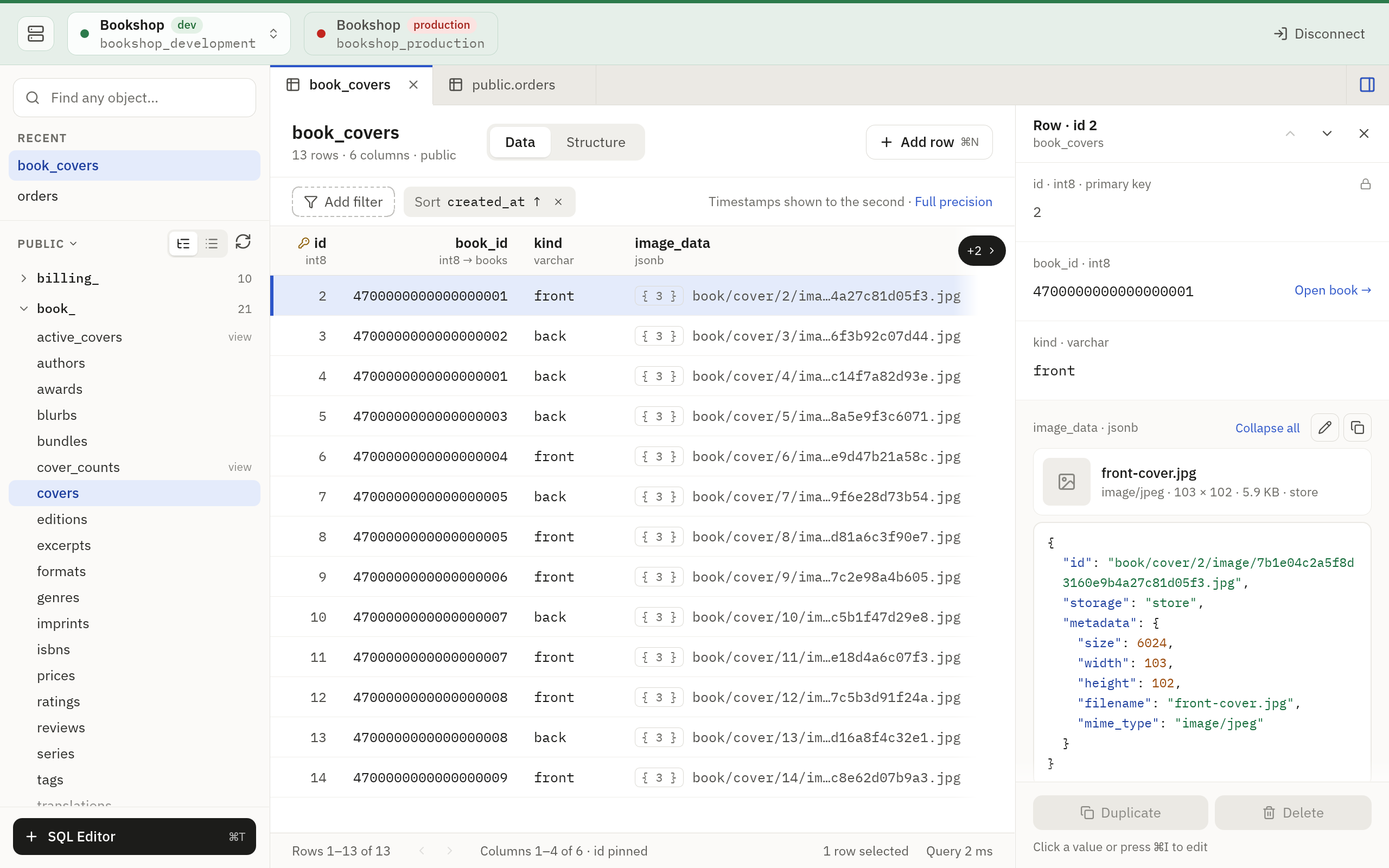
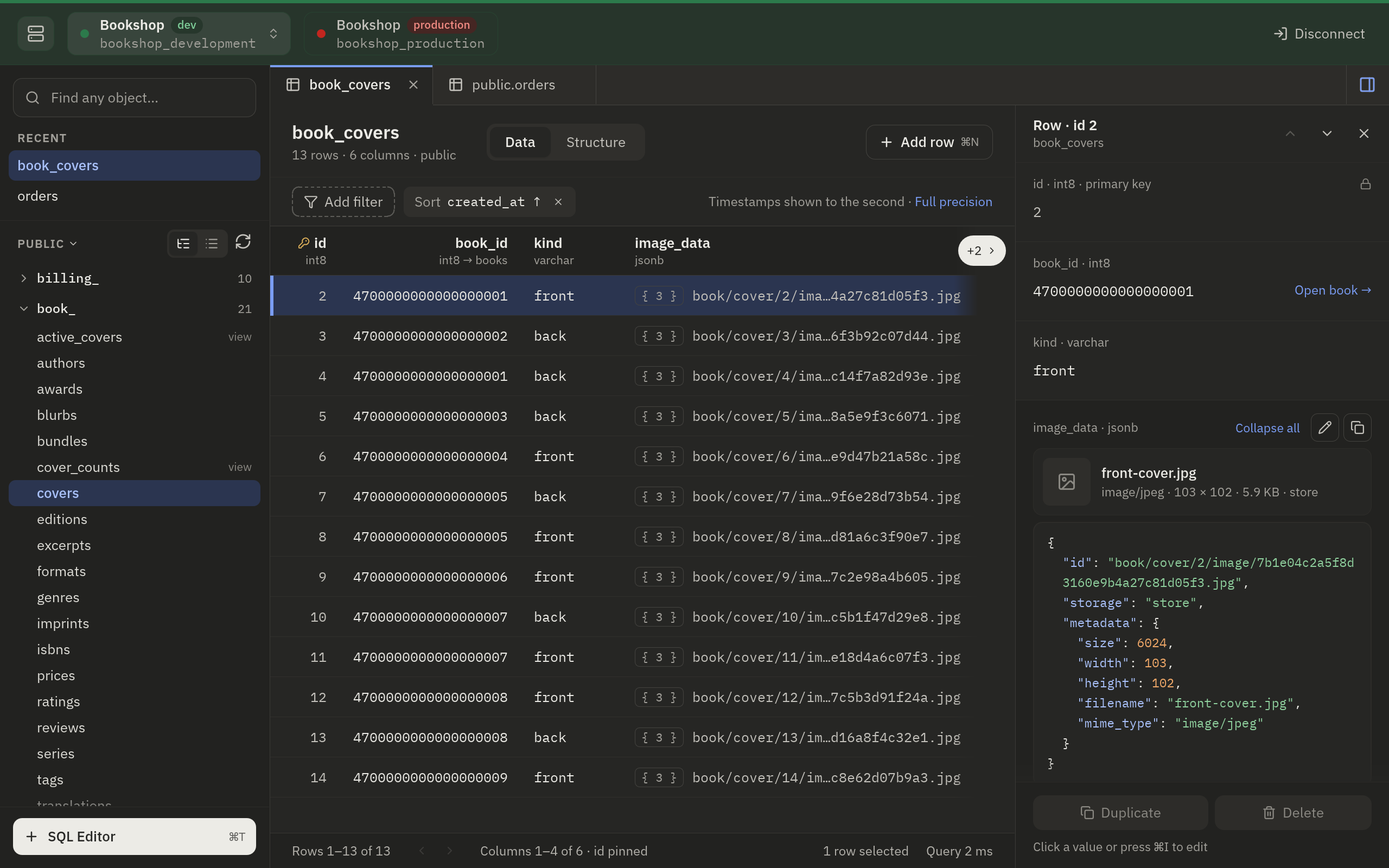
- Light and dark follow the system. Tabletist changes with the Appearance setting while it runs. Settings › Appearance can keep it light or dark whatever the system says.
- The app menu has the usual two. Tabletist → About Tabletist shows the version and the licenses of the fonts it bundles, and Tabletist → Settings… opens Settings. View → History shows the window’s History tab, and View → Quick Open opens quick open.
- The sidebar’s SQL Editor button has a clock. Its main part opens a new SQL editor; the clock at its right shows the History tab, and looks pressed while that tab is in front.
- Text has two sizes. Settings › Appearance sizes the interface (Small, Default or Large) and the data apart: grid cells, the SQL editor and JSON, from 11 to 16 points, in IBM Plex Mono or JetBrains Mono, which Tabletist bundles, or in a monospace font installed on the Mac (Menlo, or one of your own), which the menu lists after them. Cmd+= and Cmd+- change the data’s size wherever you are, and Cmd+0 puts back 12.5.
The keyboard
This page lists the keys of the macOS look, grouped by where they work.
The app’s own list (?) is shorter: it leaves out the keys of the
dialogs and of the lists that open in an editor.
Keys written with Ctrl are the Control key, not Cmd. Backspace is the key a Mac keyboard labels Delete.
Everywhere
| Keys | Do |
|---|---|
| Cmd+O | Open the connection picker |
| Cmd+1 to 9, Ctrl+Tab, Ctrl+Shift+Tab | Switch connection |
| Cmd+Shift+W | Close the connection |
| Cmd+P | Quick open |
| Cmd+T | New SQL editor |
| Cmd+Shift+[ and ] | Previous and next tab |
| Cmd+W | Close the tab |
| Cmd+B | Show or hide the sidebar |
| Cmd+Option+A | Show the Agents tab |
| Cmd+Y | Show the History tab. Not while you type in a text field, where it is redo |
| F6, Shift+F6 | Next and previous part of the window |
| Cmd+, | Settings |
| Cmd+=, Cmd+-, Cmd+0 | Larger, smaller and default data text |
? |
The list of keys |
Quick open
Quick open floats over the window, from anywhere in it: the rows, the
SQL editor, the start screen or the Agents tab. The sidebar’s “Find any
object…” field and View › Quick Open in the menu bar open it too. With
nothing typed it lists what the start screen lists (what you opened
lately), then four commands: New SQL query, Switch database (where the
server has another), Agents and History. Typing lists the tables and
then the views that match, three of each and a row that shows the rest,
then the commands and the settings whose names match, three and a row
that shows the rest. The best matches come first: the whole name, then
its start, then the starts of its words (bc finds book_covers), then
any run of its letters; what you opened lately comes first among equals. Nothing is asked of the
database while you type. The chip beside the field says what is
searched; Tab searches every open connection, each under its name.
Start with > to list the commands alone: those of the window, such as
Reload schema, Close connection or Hide sidebar, and those of the tab in
front, such as Close tab, Save changes, Run all or Format SQL. A command
is listed only where it can do something now, with its key beside it
where the window has one. Typing after > finds the settings too, each
by where it is (Settings › General › Restore tabs and filters):
Return opens Settings at that row, with its control ready for the
keyboard.
| Keys | Do |
|---|---|
| Cmd+P | Open it. While it is open, select what is typed |
| Up, Down | Move in the list |
| Return | Open the one picked, or show its tab where it has one |
| Option+Return | Open a new SQL editor reading its first rows |
| Tab | Search every open connection, or this one again |
> |
Typed first: list the commands alone (and, with a word after it, the settings) |
| Esc | Close |
The picker
| Keys | Do |
|---|---|
| Arrows | Move |
| Return | Connect, or show the connection if it is open already |
| Shift+Return | Open it again |
| Cmd+N | New connection |
| Cmd+E | Edit |
| Cmd+D | Duplicate |
| Backspace | Delete |
| Esc | Cancel connecting |
The connection dialog
| Keys | Do |
|---|---|
| Cmd+T | Test |
| Cmd+S | Save |
| Cmd+Return | Save and connect |
| Backspace, Forward Delete | In the empty Password field: forget the saved password |
| Up, Down | In Add table…’s or Add column…’s list: move. Return adds the one chosen, or in Add column…’s puts a table chosen in the field for its columns, and Esc closes the field |
| Esc | Cancel |
The sidebar
| Keys | Do |
|---|---|
| Arrows, Home, End | Move |
| Return | Open the table or view |
| Cmd+R | Reload the list |
A table
| Keys | Do |
|---|---|
| Arrows, Page Up, Page Down, Home, End | Move in the grid |
| Cmd+Option+Left and Right | Previous and next page |
| Cmd+F | Filter bar |
| Cmd+C | Copy the cell |
| Cmd+Shift+C | Copy the row |
| Cmd+R | Reload |
| Cmd+. | Cancel the running query |
| Cmd+I | Open the row panel, with the keyboard on its fields. Esc goes back to the rows |
| Cmd+Shift+R | Show or hide the row panel |
In its Structure view:
| Keys | Do |
|---|---|
| Cmd+L | Choose the column that labels the table’s rows for foreign keys |
| Up, Down | Move by column |
| Cmd+Option+L | Use the column under the cursor as that label |
The last two work with the keyboard on the view’s columns: click a column’s line, or come to them with Tab or F6.
Editing
| Keys | Do |
|---|---|
| Return, F2 | Edit the cell. Typing on a selected cell starts an edit too, and so does a double-click |
| Cmd+N | Add a row, at the top of the grid |
| Cmd+D | Duplicate the row, as a new row at the top of the grid |
| Backspace, Forward Delete | Delete the row: mark it for deletion, or restore a marked row. A new row that is not saved yet is dropped |
| Shift+Up, Shift+Down | Select the row above or below with the selected rows. Backspace then deletes them all |
| Return, Tab, Shift+Tab | Keep the edit and move down, right or left |
| Esc | Cancel the edit |
| Cmd+L | In a foreign key cell’s list: choose the column that labels it. In the chooser, Up and Down move, Return chooses and Esc closes |
| Option+Return | Open the large editor. In it, Cmd+Return applies and Esc cancels |
| Cmd+Backspace | Set NULL |
| Cmd+’ | Set DEFAULT, where the column has a default |
| Space | Flip a boolean cell: true, false, NULL |
| Cmd+Z | Revert the cell |
| Cmd+S | Save all pending changes |
| Cmd+Option+Backspace | Discard all pending changes |
| Cmd+Shift+D | Show or hide the SQL of the pending changes |
The SQL editor
| Keys | Do |
|---|---|
| Cmd+Return | Run the statement at the cursor, the whole script or the selection, as Settings › Editor says |
| Cmd+Shift+Return | Run all |
| Cmd+. | Cancel the run |
| Cmd+Shift+F | Format |
| Cmd+Shift+M | Switch between read-only and read-write runs |
| Cmd+I, Ctrl+Space | Complete |
While the completion list is open, Up and Down move in it, Tab accepts and Esc closes it. Return accepts too, except when it stays a line break: the SQL Editor guide says when.
macOS may keep Ctrl+Space for switching input sources. Cmd+I always reaches Tabletist.
The History tab
| Keys | Do |
|---|---|
| Up, Down | Move among the statements |
| Cmd+Return | Run the selected read again, in a new SQL editor |
| Cmd+C | Copy the selected statement |
| Cmd+F | Search the statements |
| Cmd+Option+A | On an agent’s statement: show its call in the Agents Log |
| Esc | Keep the history, when Clear history… asks |
The Keychain
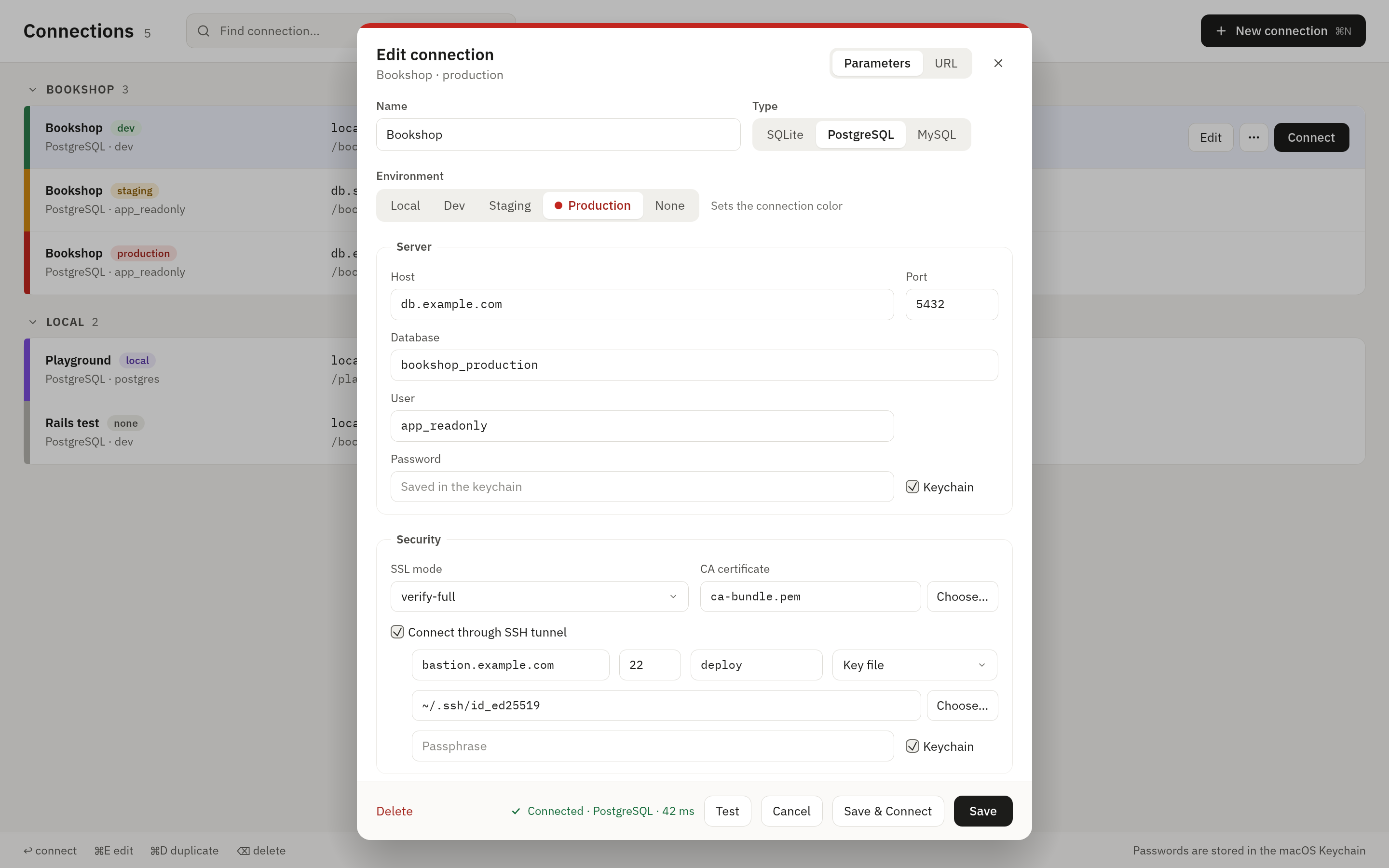
A password field in the connection dialog has a Keychain checkbox.
Ticked, the password is kept in your keychain under the name
dev.tabletist.Tabletist. Not ticked, Tabletist asks for the password
when you connect.
SSH agents
For an SSH tunnel that signs in with your agent, Tabletist uses the agent
~/.ssh/config names for the host with IdentityAgent, which is how
1Password’s agent is found. Without one it uses SSH_AUTH_SOCK.
Read about SSH tunnels.
Files
Everything Tabletist keeps is in one folder:
~/Library/Application Support/dev.tabletist.Tabletist
It holds settings.toml, connections.toml, known_hosts.json, the
themes folder and the logs. Settings shows where the settings file
is, and Reveal in Finder takes you there.