
Editing Data
Editing needs a writable connection. A connection with Open read-only ticked blocks every write, and that is the default for production. Read about read-only connections.
Today you can change values in existing rows, add rows, duplicate a row and delete rows. Pasting rows is not built yet.
Change a value
Select a cell and press Enter or F2, double-click it, or simply start
typing. Tab moves to the next cell and keeps your change. In the Omarchy
look i edits the cell, and its other keys are
its own.
Switching to another app leaves the editor open with what you typed, and you go on typing when you are back.
To edit a long value, press Cmd/Ctrl+I (Enter in the Omarchy look) to reach the row panel’s fields, or double-click the value there.
| To | Press |
|---|---|
| Set the value to NULL | Cmd/Ctrl+Backspace |
| Set the value to the column’s DEFAULT | Cmd/Ctrl+’ |
| Flip a boolean: true, false, NULL | Space |
| Put the cell back as it was | Cmd/Ctrl+Z |
| Leave the editor without the change | Esc |
Set NULL on a column that cannot be NULL does nothing, and the cell says why. Pressed on a field of the row panel, the field says it.
The Omarchy look uses vim keys for these. They are in The Omarchy Look.
What you type is checked against the column’s type before anything is sent: numbers and their ranges, booleans, enum values, the maximum length, and the syntax of JSON. A foreign key you type is also looked up in the table it points at, as a warning.
Dates and times with a zone
A PostgreSQL timestamptz is shown, and opens to be edited, in the zone
of Time zone for timestamptz,
with that zone’s offset. A value you type without an offset is sent with
the zone’s, so the server reads it as the time you see; one with an
offset is sent as you typed it. Typing back the same moment, in any zone,
changes nothing.
Words that are not text
In a column that is not text, three words typed into a cell are what they say, not their letters. They are read in any case.
| Typed | Is |
|---|---|
NULL |
NULL, where the column takes it |
DEFAULT |
The column’s default, where it has one |
now(), now, current_timestamp |
The moment of the save by the database’s own clock, in a date or time column |
The cell shows the word until you save, and what the database stored after. Review SQL shows the keyword as it is sent.
- In a text column these are text:
NULLthere is four letters. Use Cmd/Ctrl+Backspace for NULL and Cmd/Ctrl+’ for DEFAULT (xandDin the Omarchy look). PostgreSQL’scitextis a text column. - In a JSON column
nullis a JSON document.NULLandDEFAULTin capitals are the database’s. - The same goes for a type that is no number, boolean, date or time and
may keep text: an enum, a UUID, a SQLite column with no type.
nullthere is four letters, and only the capitals are the database’s. - An array of dates is no date:
now()there is text. - A word the column cannot take stays text, and is checked like any other:
NULLin a column that cannot be NULL,DEFAULTwhere there is no default,now()outside date and time columns. - A date column gets the date and a time column the time of day. On SQLite the time is UTC, to the second.
- While a date or time value is being edited, the now button beside
it sets the same thing. The Omarchy look has no button: type
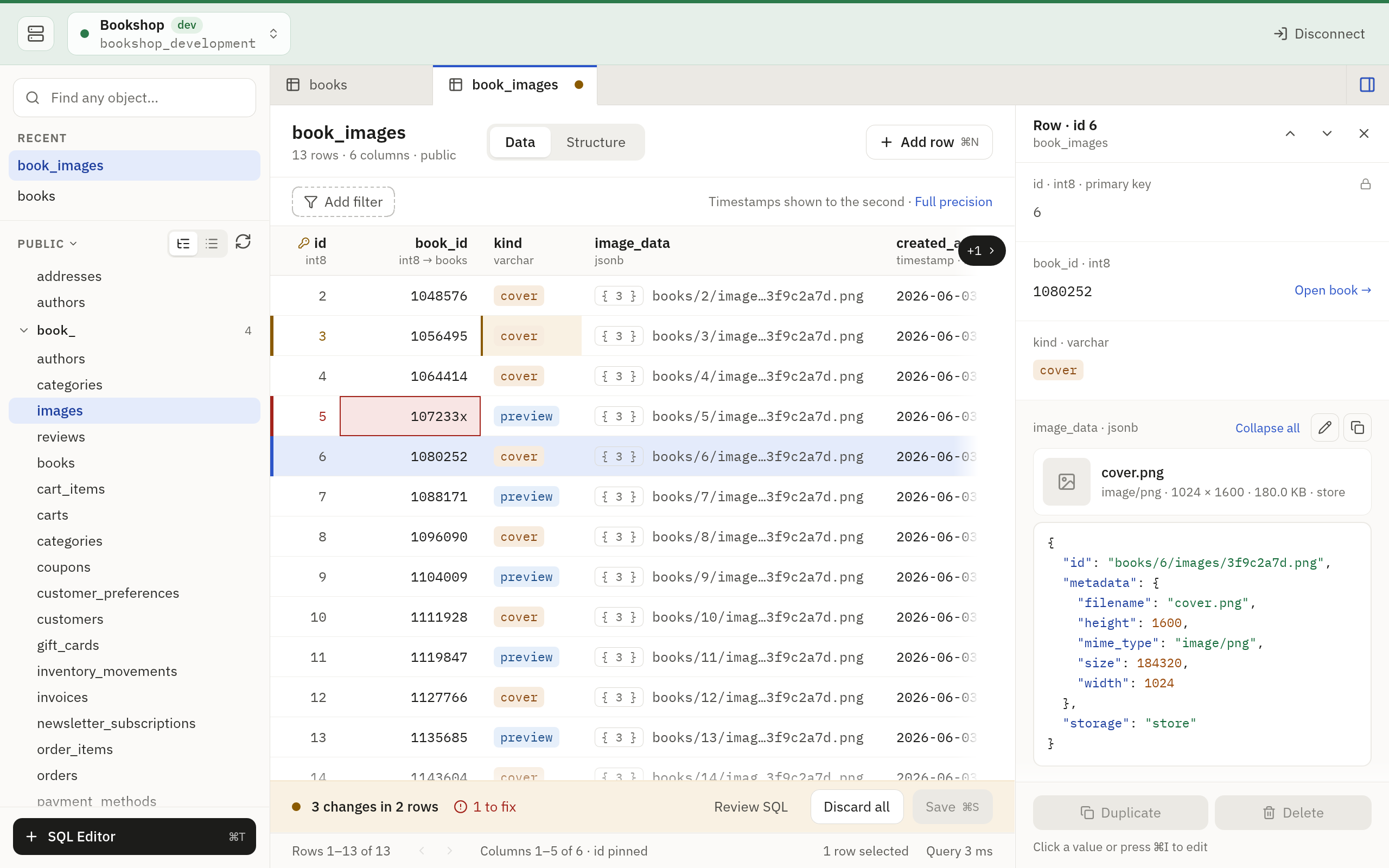
now()there. - In a new row, a cell you leave alone is its default already, so
DEFAULTthere takes the value out again.
Foreign keys
A cell whose column points at another table searches that table while you type. Start typing a name, a title or an email, or the start of an id, and the rows that match are listed under the cell with their ids.
| To | Press |
|---|---|
| Move in the list | Up, Down, Page Up, Page Down |
| Set the cell to the highlighted row | Enter, or Tab to move on |
| Take a row with the pointer | Click it |
| Choose the column that labels the list | Cmd/Ctrl+L, or click the label at the list’s foot |
| Leave the cell as it was | Esc |
The list is searched by the table’s label column and by its key. An id you type or paste in full is taken as it is.
The first row is highlighted when what you typed is in its name or is its
id. When the rows only begin with what you typed in their ids, none is, and
Enter keeps your text: 12 stays 12 and does not become row 120.
Press Enter on a cell without typing (i in the Omarchy look) to see the
table’s first rows, with the row the cell points at now on top.
The list holds up to 50 rows and shows eight at a time. Its last line says when the table has more: type more to narrow them. Where the column takes NULL, Set NULL under the list sets it, as Cmd/Ctrl+Backspace does.
The picker is on the cells of the grid and on the fields of the row panel, in a new row and in a copy too. A key of several columns is edited as text.
The label column
The label column is what a row of the other table is read by: each line of the list shows it beside the row’s id, and it is what your text is searched in. The foot of the list names it, Label name · Automatic. The Omarchy look names it in the status line.
Automatic is the table’s first text column that is not a key. To pick another, press Cmd/Ctrl+L or click the label at the foot. A chooser opens beside the list. The cell stays in edit, with your text as you left it.
| To | Press |
|---|---|
| Move in the chooser | Up, Down (j and k too in the Omarchy look) |
| Jump to a column | Type the letter its name begins with (not in the Omarchy look, where letters are keys) |
| Choose the highlighted line | Enter, or click it |
| Close the chooser and keep the label | Esc |
Automatic hands the pick back to the app, and No label lists the rows by their keys alone. A key and a column of bytes are listed, but cannot be chosen. A date or a number can: it is searched as the text the list shows.
The list is searched again by the new label at once, and its foot says
Set by you where you picked a column or No label. The choice is the
table’s: every foreign key that points at it uses it. It is kept for that
saved connection (on PostgreSQL, for the database the tab is on), in
labels.json among
the app’s files on this
computer. Nothing is written to the database.
The same choice can be made with no cell open, in the table’s Structure view. On a read-only connection, where no cell opens, that is where it is made.
When a column you chose is renamed or dropped, the label goes back to Automatic and the list says so once (the status line does, in the Omarchy look). A table that has only its key column has nothing to choose, and says so.
An id you type yourself is looked up when you leave the cell. If no row
has it, the cell gets an outline and says so under the pointer, the row
panel says it under the field (“No publisher with id 12”), and the bar
counts it where it has the room: “1 value names no row”. The Omarchy look
says it in the line under the grid, with a ?.
It is a warning, not a mistake to fix. You can still save, and the database decides: a row may be there by then, and a table that points at itself can name a row you are adding in the same save. A row you picked from the list is not looked up again.
Save
Nothing is written while you edit. Your changes stay pending, and a bar appears with what you can do with them.
- Save (Cmd/Ctrl+S) writes all of them in one transaction. Either every change is written or none is.
- Discard all drops them.
- Review SQL (Cmd/Ctrl+Shift+D;
:diffin the Omarchy look) shows the statements a save will run. Copy SQL in that panel copies them.
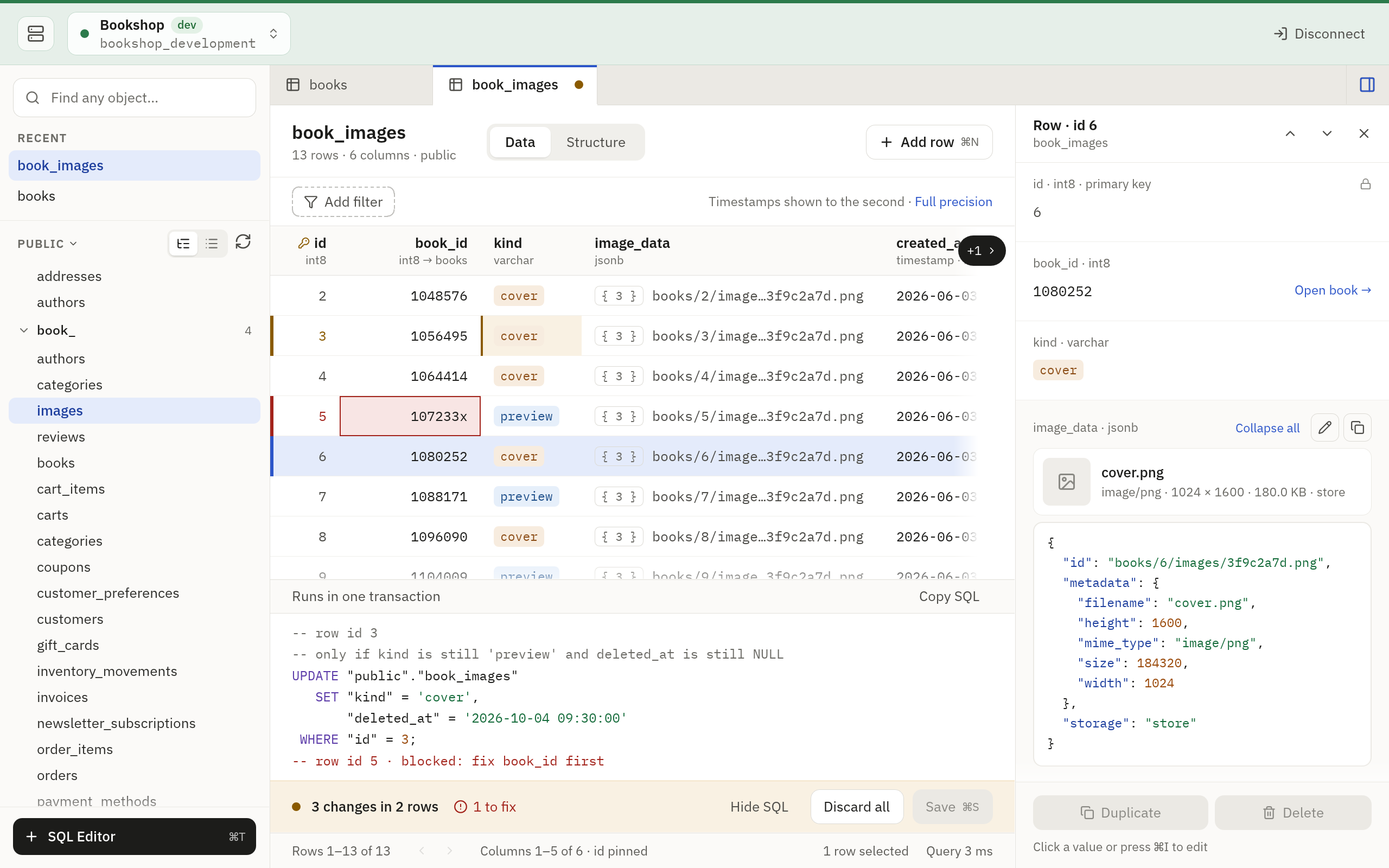
Where the window leaves the bar little room, it says less, and Discard all and Review SQL move into the … menu beside Save.
While changes are pending, Tabletist asks before anything that would drop them: closing the table’s tab, its connection or the window, disconnecting, opening another connection in that tab, switching database, loading another page of the table (refreshing, paging, sorting, filtering, retrying), or following a foreign key into it. You can discard them or stay, and save them first where one table holds them. With Ask before closing with unsaved edits off in Settings, nothing is asked and the changes are discarded, except while a dialog is open, such as a production save’s confirmation. While a save runs, these do nothing until it ends, and closing the window asks either way.
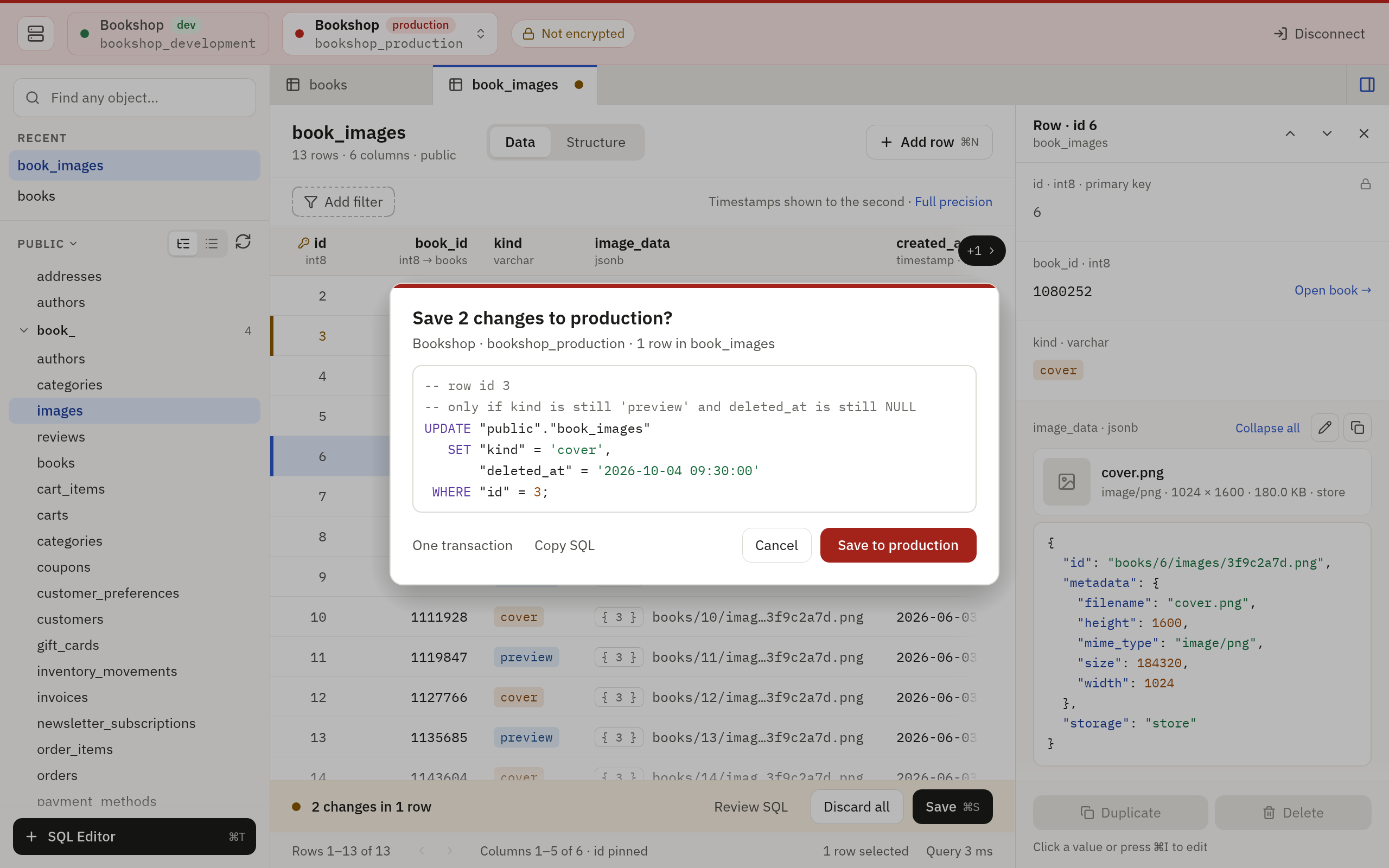
A save to a production connection asks first, with every statement on screen.
Add a row
Press Add row in the table’s header, or Cmd/Ctrl+N while the rows are
in front. The new row appears at the top of the grid, with the cursor in
its first value that has to be given. In the Omarchy look, o opens the
row below the cursor’s row and O above it.
A new row is green until it is saved, and each of its cells says what the database will do if you leave it alone:
- required (a red
*after the column’s name in the Omarchy look): the column cannot be NULL and has no default. Save waits for a value. The Omarchy look’s status line names the column, while you type too. - A fainter value: the column’s default. Where the column lists its
values it is the value’s tag, faded (dimmed text in the Omarchy look).
Slanted, it is a default the database works out for each row, like
CURRENT_TIMESTAMP. - NULL: the column takes NULL and has no default.
- + new, or an empty cell: the database assigns the value on save, as it does for an identity column or a computed one. Such a cell cannot be typed into.
Fill it as you edit any row. Cmd/Ctrl+Z on a cell (u in the Omarchy
look) takes its value out again. Esc leaves the editor and keeps the row.
While new rows wait to be saved, the Omarchy look counts them at the right
of the table’s header: +1.
The row is saved with everything else that is pending, in the same
transaction. Only the columns you set are sent, and Review SQL shows
the INSERT. After the save the row shows what the database stored: its
id, its defaults. It stays where it was until the next reload or sort.
- Backspace or Delete drops a new row that is not saved yet (
ddin the Omarchy look). Discard all drops every new row with the other changes. - If the database refuses the row, nothing is written. The row stays, in red, with the database’s words on it.
- On a table with a trigger, and on MySQL where the new row cannot be found again by its key, the page is loaded again after the save and the row goes where the sort puts it.
- A table without a primary key takes new rows. They cannot be edited afterwards, as no row of such a table can.
In the row panel
While a new row is selected, the row panel is its form. The fields a save
needs come first, then the ones you set, then the rest, and last the ones
the database fills. Each says what the database will do if you leave it
alone, as its cell does: required, the default with from DEFAULT,
CURRENT_TIMESTAMP on save for a default the database works out, and
Assigned by the database on save.
Click a value to edit it there, or press Cmd/Ctrl+I (Enter in the Omarchy
look) and then Enter. Enter takes what you typed and goes on to the next
field. Discard new row
drops the row, and Add another adds one more. The Omarchy look has
its keys for both, dd and o, and they work from a field of the form
too.
On a table without a primary key the form says at its top that the row cannot be edited or deleted once it is saved.
Duplicate a row
Select a row and press Cmd/Ctrl+D, or Duplicate in the row panel’s
footer, under the row’s fields. A copy of the row appears at the top of
the grid as a new row, to be changed and saved like any other. The
Omarchy look has neither the key nor the button. There, yy yanks the
cursor’s row, and p puts a copy below the cursor’s row, P above it.
The yanked row stays for the next p, through a reload too. yy also
puts the row on the clipboard, unless it is a new row that is not saved
yet.
A new row is copied the same way, by the keys: its form has no Duplicate button.
The copy holds what the row shows, the changes you have not saved among them. It leaves out what is the row’s own:
- the primary key, and a column the database numbers or computes;
- a column that is alone in a unique index. The copy could not be saved with the same value. (An index over an expression, or over part of a column, does not count: the copy keeps the value and the database judges the save.)
The editor opens on the first value the copy still needs. If the copy needs none, no editor opens and the copy is selected, in the column the cursor was in.
Where an added row’s cell says required, the copy’s says required ·
unique in a column it cleared for being unique or of the primary key,
and so does that column’s field in the row panel, in every look. In the
Omarchy look the grid has the column’s red * in place of the words.
Binary values are not copied, and neither is text over 256 KiB. A column whose structure the app does not know is not copied either, and the form calls it unknown. The row panel, as the copy’s form, says at its top which columns were copied (the first of them where there are many), which were cleared and why, and which were not copied and why.
One row is copied at a time.
Delete a row
Select a row and press Backspace (Delete works too), or press Delete
in the row panel. In the Omarchy look the key is dd. The row is marked:
it stays where it is, struck through on a red tint, until you save.
Nothing has reached the database yet.
Press the key again on a marked row to restore it, or press Restore
in the row panel, or undo (Mod+Z, u). Edits you had made to the row are
kept while it is marked and come back with it. They are not saved while
it is.
A new row that is not saved yet is dropped by the same key, and leaves nothing to save.
To delete several rows at once, select them first: hold Shift and click another row, or hold Shift and press the Up or Down arrow. The footer says how many rows are selected. Backspace then marks them all. Pressed again it restores them all, and where only some of them were marked it marks the rest. New rows among them are dropped. One press takes up to 1,000 rows: for more, delete with a statement in the SQL editor.
In the Omarchy look, press V on a row, move to the last row with j or
k, and press d. A count does the same from the cursor down: 3dd
marks three rows.
Save writes the deletes with everything else that is pending, in one
transaction: new rows first, then changed rows, then deleted rows.
Review SQL shows the DELETEs before you save. Rows next to each
other go in one statement, up to 100 rows each. If the database refuses
one of those, the save still names the row it could not delete. After the
save the rows are gone from the grid, and the selection is on the row
that stood after them.
Where another table’s foreign key points at the rows you delete, Review
SQL says what the save does there, under its statements: how many rows
that table loses (ON DELETE CASCADE), or how many have the key cleared
(ON DELETE SET NULL). The production confirmation shows the same lines.
Only the rows that point at yours directly are counted, and until the
count is in a line stands without its number.
- If someone else deleted the row first, the save still goes through, and a line says which row was already gone.
- If the database refuses a delete because a foreign key still points
at the row, nothing is saved. The row stays marked and says how many
rows of which table point at it, and Open rows opens them (
gdin the Omarchy look). Any other refusal shows the database’s message. - Where a table’s rows point at other rows of the same table, a row is deleted before the row it points at, so marking a parent and its children deletes them together.
Rows cannot be deleted on a read-only connection, in a view, or in a table without a primary key or unique index. The key and the button say why.
When someone else changed the row
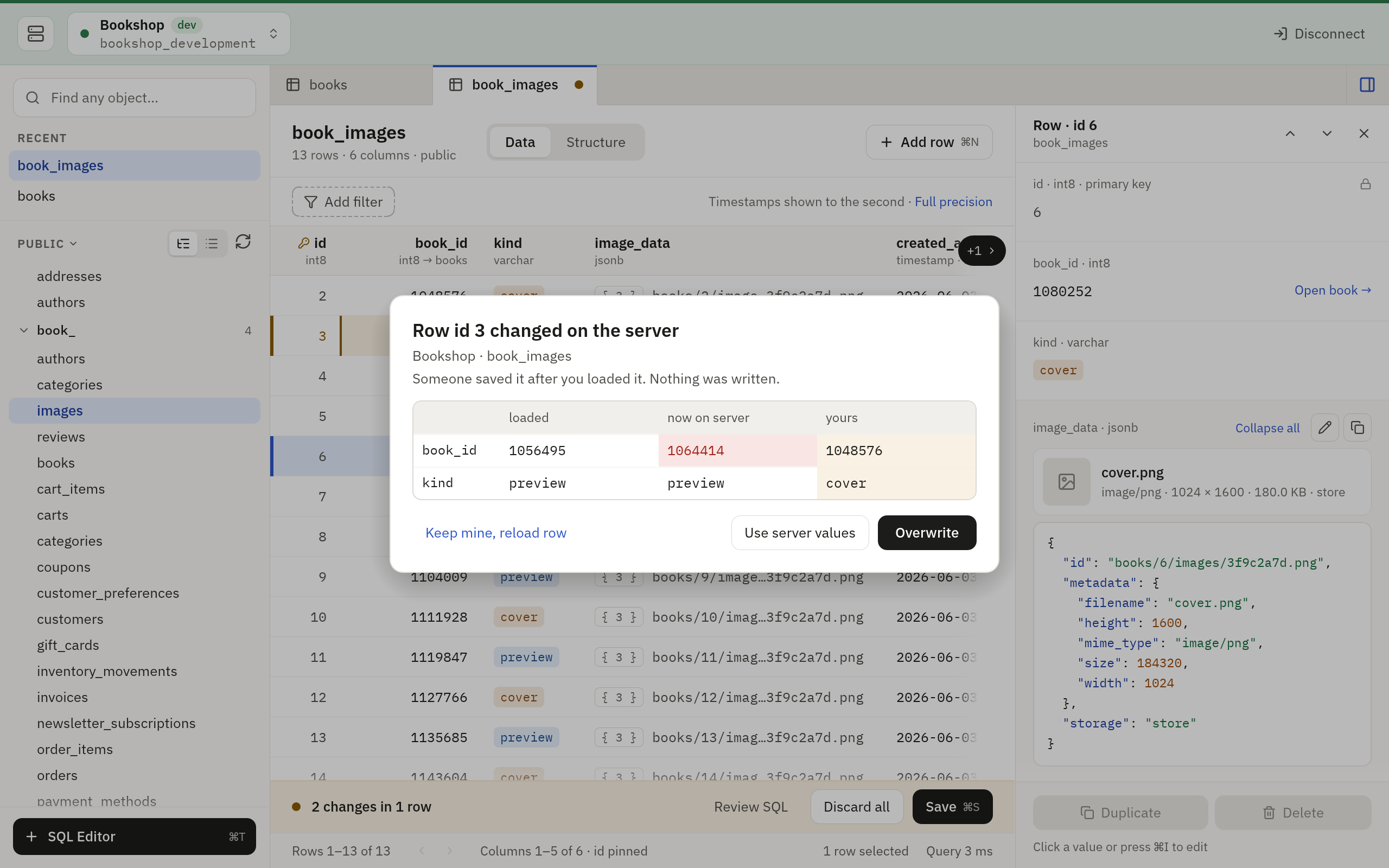
A save does not overwrite a row that changed after you loaded it unless you say so. If it finds one, it writes nothing and asks about each such row. You see three versions side by side: what you loaded, what the server holds now, and yours. Then you choose:
- Keep mine, reload row loads the row again and keeps your change pending. Esc does the same.
- Use server values drops your change to that row.
- Overwrite writes your values over the server’s.
If someone deleted the row, there is nothing to reload or overwrite: Discard my changes drops your change, and Esc leaves it pending.
What cannot be edited
A cell that cannot be edited says why when you try. The common reasons:
- The connection opens read-only.
- The object is a view.
- The table has no primary key or unique index, so a row cannot be targeted safely.
- The column is part of the row’s key, or is computed by the database. In a new row a key’s column can be given, unless the database numbers it.
- The value is binary, or larger than 256 KiB.