The Omarchy Look
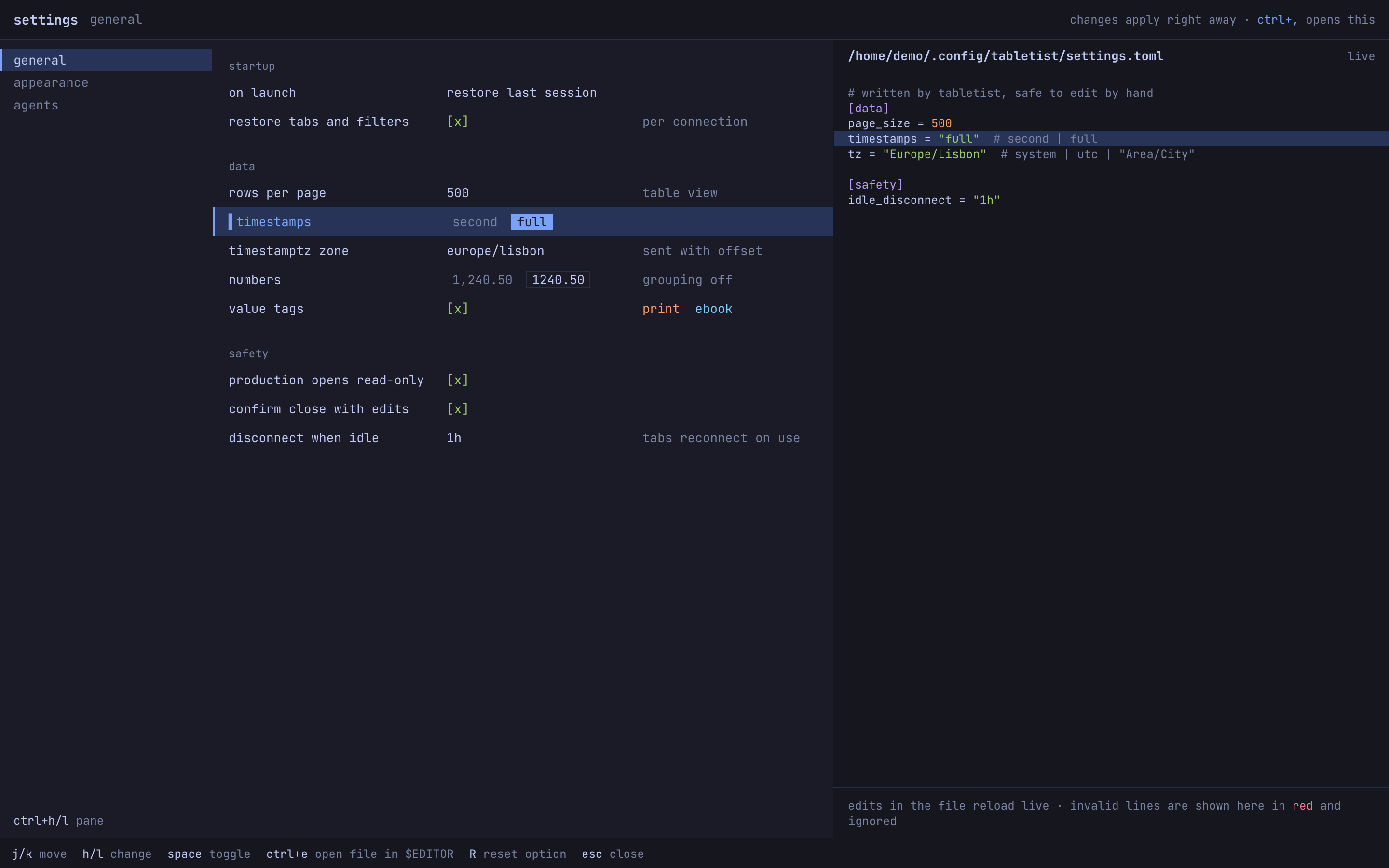
On Linux, Tabletist takes the Omarchy look: square corners, the keyboard first, vim keys, and the desktop’s monospace font throughout. Every Linux desktop gets it. On macOS and Windows the app has a desktop look instead, and there is no setting that switches between them.
The keyboard
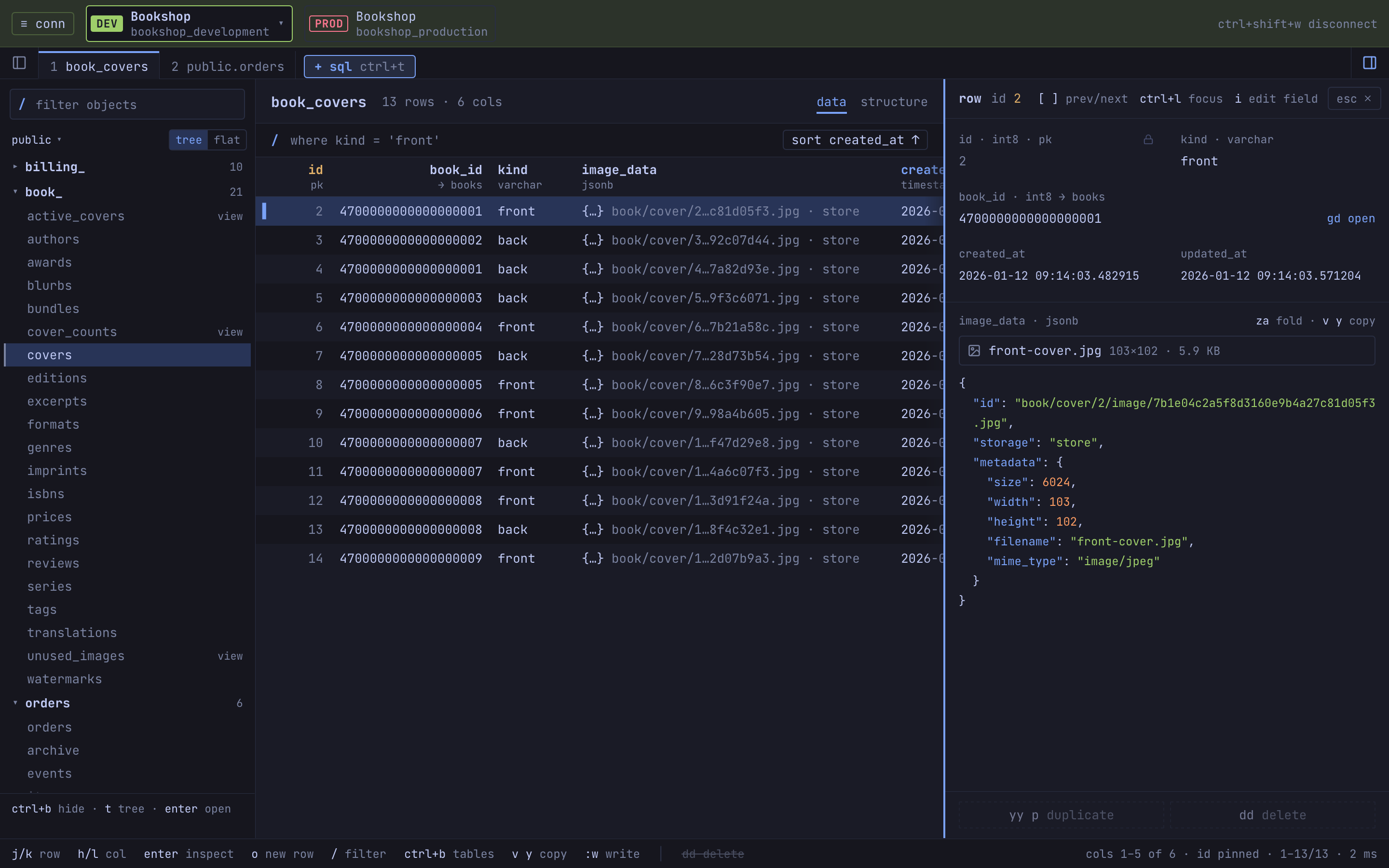
This page lists the keys of the Omarchy look, grouped by where they
work. The status line along the bottom shows the ones that work where you
are. The app’s own list (?) is shorter: it leaves out the keys of the
dialogs and of the lists that open in an editor.
A letter does its job when no text field has the keyboard. While a field has it, letters are typed into the field, and Esc gives the keyboard back.
Everywhere
| Keys | Do |
|---|---|
| Ctrl+Shift+C | Open the connection picker. While you type in a field it copies what is selected instead |
| Ctrl+Shift+1 to 9, Ctrl+Tab, Ctrl+Shift+Tab | Switch connection |
| Ctrl+Shift+W | Close the connection |
| Ctrl+T | New SQL editor |
| Ctrl+Shift+D | Switch database, where the server has another |
| Alt+1 to 9 | Go to that tab |
| Ctrl+Shift+[ and ] | Previous and next tab |
| Ctrl+W | Close the tab. While you type in a field it deletes a word instead |
| Ctrl+B | Show or hide the sidebar |
| Ctrl+H, Ctrl+L | Move between the parts of the window |
| F6, Shift+F6 | Next and previous part of the window |
| Ctrl+, | Settings |
| Ctrl+=, Ctrl+- | Larger and smaller text: the whole window, under a dialog too |
:agents |
Show the Agents tab |
:agents log |
Show the Agents tab’s log |
:history |
Show the History tab |
:history clear |
Clear this connection’s history, once you answer y |
? |
The list of keys |
Ctrl+P opens quick open from any pane: a picker at the top of the
window that finds a table or view by name, in this connection or (Tab)
in every open one. With nothing typed it lists what you opened lately,
numbered; once you type, it lists what matches. Its commands stay on :.
/ in the sidebar still filters the sidebar’s list.
| Keys | Do |
|---|---|
Ctrl+P |
Open it |
Ctrl+N, Ctrl+P, Down, Up |
Move in the list |
Enter |
Open the one picked, or show its tab where it has one |
1 to 9 |
With nothing typed: open that recent. Once you type, digits are typed |
Tab |
Search every open connection, or this one again |
Esc |
Close |
The picker
| Keys | Do |
|---|---|
j k, arrows |
Move |
| Enter | Connect, or show the connection if it is open already |
| Shift+Enter | Open it again |
n |
New connection |
e |
Edit |
yy then p |
Duplicate |
dd |
Delete |
/ |
Filter the list |
a |
What agents may do on the connection: j k, Enter to set it, t for its Agents tab, Esc |
| Esc | Cancel connecting |
The connection form
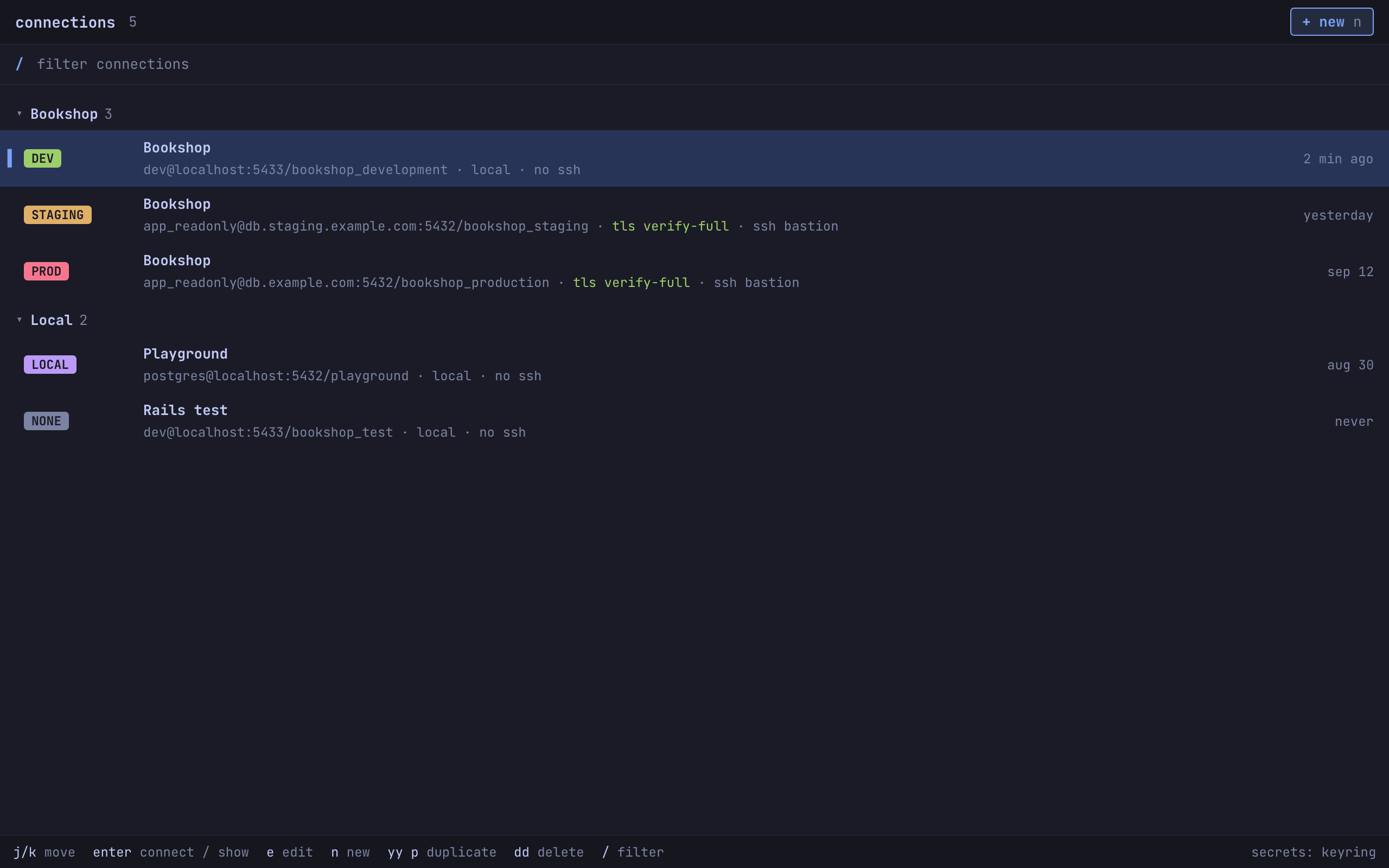
| Keys | Do |
|---|---|
| Tab | Next field |
u |
Paste a URL |
| Ctrl+T | Test |
| Ctrl+S | Save |
| Ctrl+Enter | Save and connect |
| Backspace, Delete | In the empty password field: forget the saved password |
| Up, Down | In add table…’s or add column…’s list: move. Enter adds the one chosen, or in add column…’s puts a table chosen in the field for its columns, and Esc closes the field |
| Esc | Cancel |
The sidebar
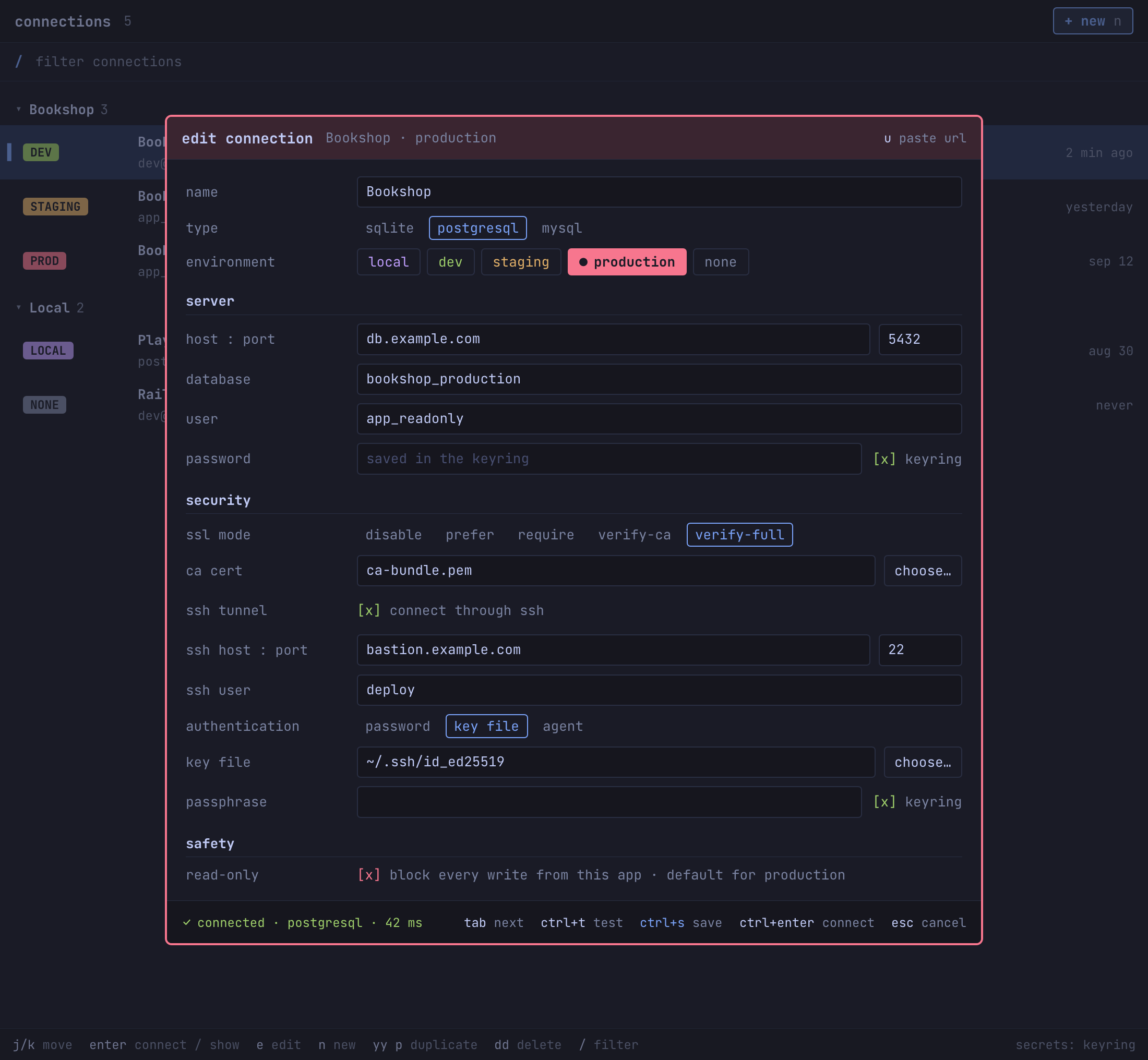
| Keys | Do |
|---|---|
j k, arrows, Home, End |
Move |
| Enter | Open the table or view |
/ |
Filter the list |
t |
Switch between tree and flat. The connection keeps its choice; Settings › Appearance sets the default |
R |
Reload the list |
ga |
Show the Agents tab |
| Ctrl+B | Hide the sidebar |
The start screen
A window with no tab open shows the start screen in the main pane: the
connection in one line (a production connection gets its red strip there,
with read-only where it is), the five tables, views and SQL editors you
opened last on this connection, numbered, and under start the ways to
begin. On your first visit it lists the largest tables instead, from the
database’s statistics, so nothing is queried (a SQLite file lists its
tables by name). A / line under the connection holds the search. The
status line says -- START -- while no tab is open. After a connect the
keyboard is in the sidebar; Ctrl+L gives it to the screen, whose border
lights, and Ctrl+H puts it back.
| Keys | Do |
|---|---|
1 to 9 |
Open that row |
/ |
Search the tables and views; type to filter |
t |
New SQL editor |
d |
Switch database, where the server has another |
e |
Edit the connection |
a |
Show the Agents tab |
With the search open, the matches replace the start lists:
| Keys | Do |
|---|---|
Ctrl+N, Ctrl+P |
Move down and up the matches |
Enter |
Open the one picked |
Esc |
Clear the search and go back |
A table
| Keys | Do |
|---|---|
j k |
Move by row |
h l |
Move by column |
| Arrows, Page Up, Page Down, Home, End | Move in the grid |
| Ctrl+Alt+Left and Right | Previous and next page |
/ |
Filter with a WHERE line |
| Ctrl+F | Filter bar |
gd |
Follow the selected foreign key. On a row whose delete a foreign key refused, open the rows that hold it |
ga |
Show the Agents tab |
v then y |
Copy the cell |
R |
Reload |
| Ctrl+C | Cancel the running query |
The Structure and Data views are clicked: switching between them has no key. Nor has copying a whole row.
The Agents tab
| Keys | Do |
|---|---|
y |
Copy the command that connects an agent |
o |
Turn the agent server on, while it is off |
s |
Settings › Agents, while the server is off or no agent is here |
e |
Allow agents on this connection, while their access is off |
j / k |
Move among the agents’ sessions: those here, then those elsewhere |
S |
Stop the selected session, wherever it works |
X |
Stop every agent here, and turn this connection’s access off |
| Enter | Show the window of the connection the selected agent works on |
l |
Show the log of agents’ calls, and back |
L |
In the log, every connection’s calls, or this one’s |
/ |
In the log, open its filters: the search, the agent and the result. Tab moves among them, Enter or Space picks |
| Enter | In the log, show the selected call’s details, and close them |
o |
In the log, open the selected call’s statement in a SQL editor, read-only and not run |
E |
In the log, export the calls that pass its filters, as CSV or JSON Lines |
| Esc | Close the log’s filters, and keep them, or the call’s details |
j / k |
In the log, move among the calls |
The Structure view
Ctrl+L brings the keyboard to its columns, as it does to the rows.
| Keys | Do |
|---|---|
j k, Up, Down |
Move by column |
gl |
Use the column under the cursor as the label for foreign keys |
:label |
Choose that label from a list. In it, j k move, Enter chooses and Esc closes |
:label auto |
Back to the app’s own pick |
:label none |
No label: rows are listed by their keys alone |
:label and a column’s name |
Use that column |
The label is the column that the table’s rows are read by in the list of a foreign key that points at it: Editing Data says what it does. A key or a column of bytes is not taken, and the status line says why.
The row panel
| Keys | Do |
|---|---|
| Enter | Open the row panel, with the keyboard on its fields. Ctrl+L goes to it too |
| Ctrl+Shift+R | Show or hide the row panel |
j k |
Move between its fields |
Enter, i |
Edit the field |
[ ] |
Previous and next row, while the panel shows |
za |
Fold the documents in it |
cc, x, D, u |
Work on the field as they do on its cell |
| Ctrl+H | Back to the grid, on that field’s cell |
| Esc | From its fields, back to the rows. From the rows, close it |
Editing
| Keys | Do |
|---|---|
i |
Edit the cell |
cc, s |
Edit the cell from nothing |
o, O |
Add a row below the cursor’s row, or above it |
yy |
Yank the cursor’s row, and put it on the clipboard |
p, P |
Put a copy of the yanked row below the cursor’s row, or above it |
dd |
Delete the row: mark it for deletion, or restore a marked row. A new row that is not saved yet is dropped |
3dd |
The same for the cursor’s row and the two after it. Any count works, up to 1,000 rows. The cursor moves to the row after them |
V |
Start a selection of rows on the cursor’s row. j, k and the other moves extend it. The status line reads -- VISUAL -- and counts its rows |
d |
In a selection of rows: delete its rows, or restore them where all are marked. New rows among them are dropped |
Esc, V |
Leave the selection of rows |
| Enter, Tab, Shift+Tab | Keep the edit and move down, right or left |
| Esc | Leave the editor and keep the edit |
| Ctrl+C | Drop the edit |
| Ctrl+N, Ctrl+P, Down, Up, Page Down, Page Up | Move in a foreign key cell’s list |
| Enter, Tab | In that list: set the cell to the highlighted row |
| Esc | In that list: close it and leave the cell as it was |
| Ctrl+L | In that list: choose the column that labels it. In the chooser, j k, Ctrl+N, Ctrl+P and the arrows move, Enter chooses and Esc closes |
| Alt+Enter | Open the large editor. In it, Ctrl+Enter applies, Esc keeps the text, Ctrl+C drops it and Ctrl+Shift+F formats JSON |
x |
Set NULL. On a column that cannot be NULL, the status line says so |
D |
Set DEFAULT, where the column has a default |
| Space | Flip a boolean cell: true, false, NULL |
u |
Revert the cell |
:w, Ctrl+S |
Save all pending changes |
:e! |
Discard all pending changes |
:diff |
Show the SQL of the pending changes |
Y |
Copy that SQL, while it shows |
| Esc | Close that SQL |
A date or time cell has no key for the time of the save: type now()
into it.
The : prompt takes w, e! and diff on a table, the label lines in
its Structure view, ro and rw in a SQL editor, and nothing else.
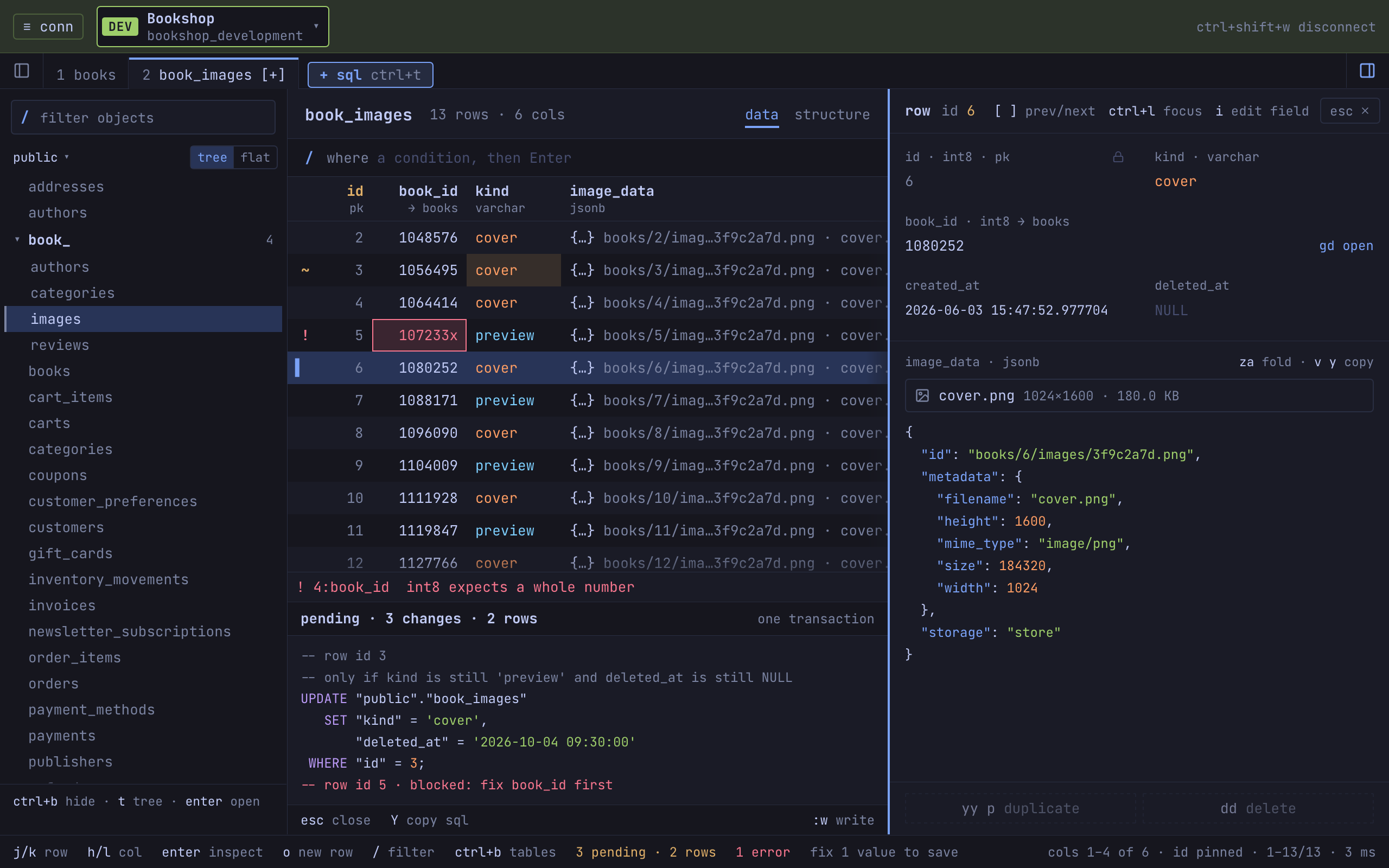
A save can ask you something first. Each question has its own keys:
| Question | Keys |
|---|---|
| A save to production | Type the database’s name, then Enter. Where the connection names no database, its own name. Esc goes back |
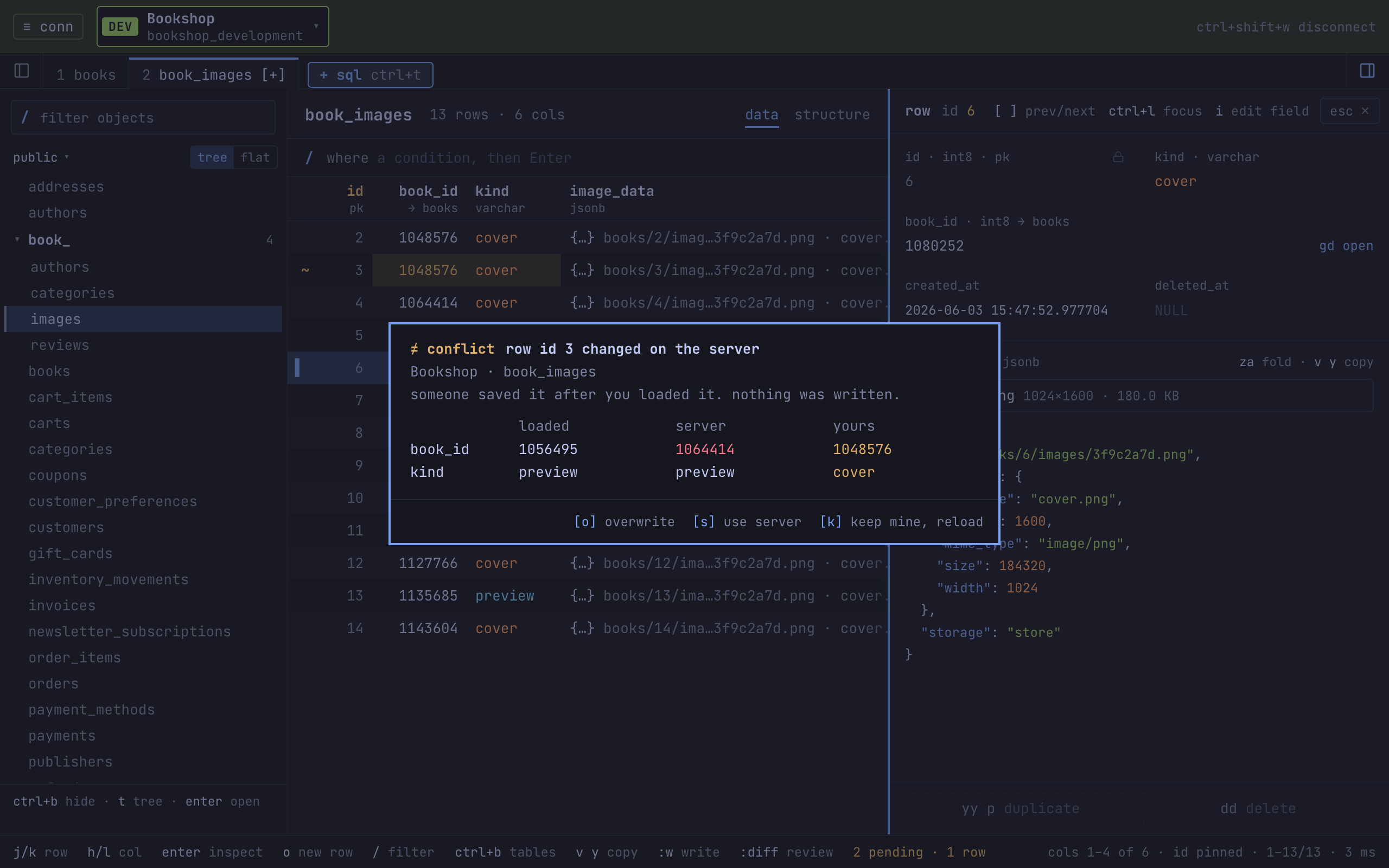
| A row that changed on the server | o overwrite, s use the server’s values, k or Esc keep mine and reload. PgUp and PgDn scroll |
| A row that was deleted on the server | d discard my changes, k or Esc keep them pending |
| Leaving with pending changes | w write, d discard, Esc stay |
The SQL editor
| Keys | Do |
|---|---|
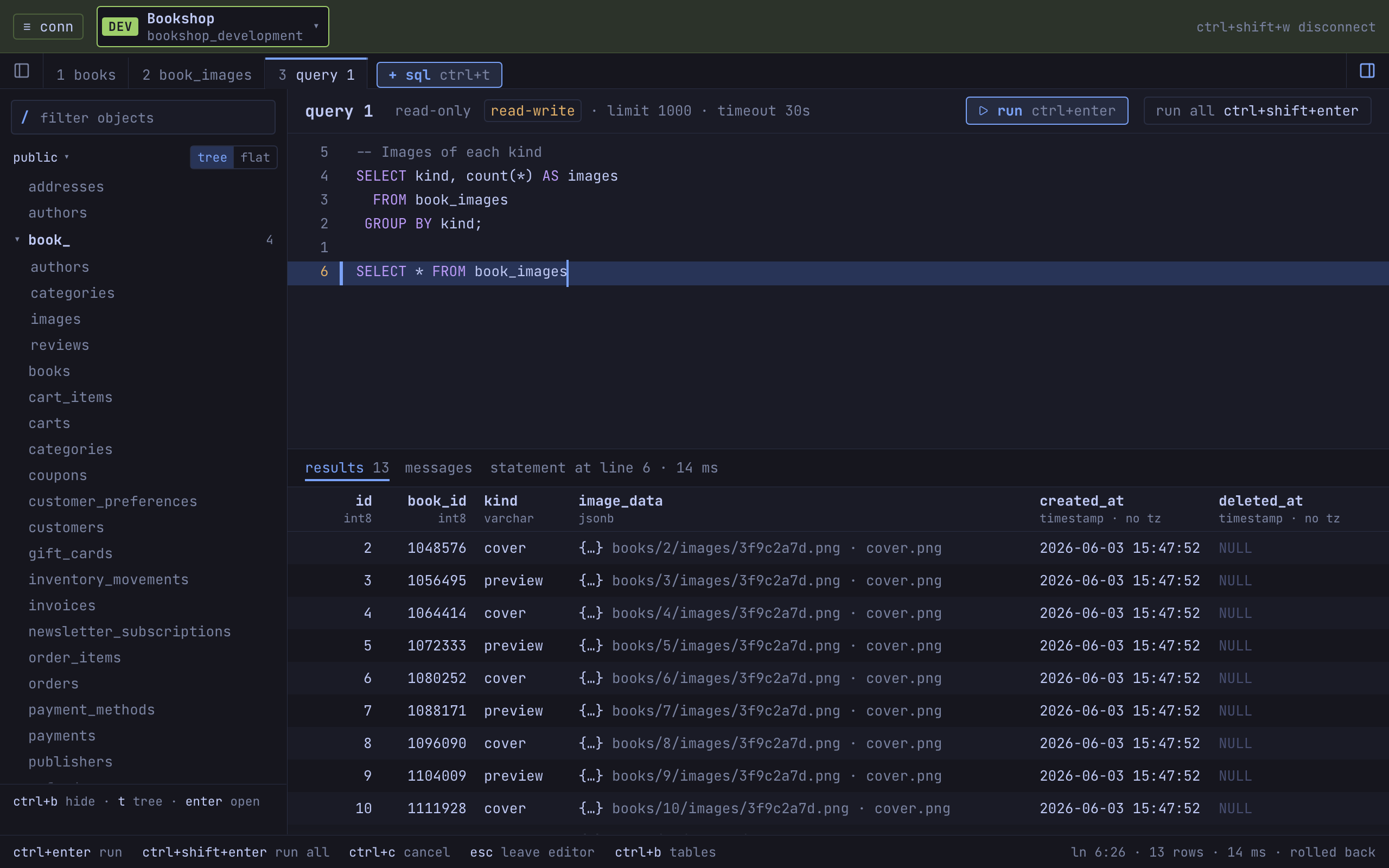
| Ctrl+Enter | Run the statement at the cursor, the whole script or the selection, as Settings › Editor says |
| Ctrl+Shift+Enter | Run all |
| Ctrl+C | Cancel the run, while one runs. With none running it copies |
| Esc | Leave the editor: the letters below are read from then on |
= |
Format, with the keyboard out of the text |
:ro, :rw |
Read-only and read-write runs, with the keyboard out of the text |
| Ctrl+Space | Complete |
While the completion list is open:
| Keys | Do |
|---|---|
| Up, Down, Ctrl+P, Ctrl+N | Move in the list |
| Tab | Accept |
| Enter | Accept, except when it stays a line break: the SQL Editor guide says when |
| Esc | Close the list |
On a result, with the keyboard out of the editor:
| Keys | Do |
|---|---|
j k, h l |
Move in the result |
| Enter | Show the selected row in the row panel |
| Ctrl+Shift+R | Show or hide the row panel |
[ ] |
Previous and next row, while the panel shows |
When a read-only run refused a write, the card in Messages has its own
letters: e edits the connection, and w allows writes in this tab or
runs the statements again in a read-write transaction, whichever the card
offers.
Under a result the limit cut, a shows all of it. When the timeout
stopped a run, t runs it again without one. Times read “45s”, “1m” and
“1m 30s” in this look.
The History tab
| Keys | Do |
|---|---|
j k, arrows |
Move among the statements |
r |
Run the selected read again, in a new SQL tab. On a write the status line says that writes open with Enter |
| Enter | Open the selected statement in a SQL tab, a write’s in a read-only one |
a |
On an agent’s statement: open its call in the Agents tab’s log |
f |
On a filter’s: open its table with that filter and sort |
y |
Copy the selected statement |
/ |
The filter line: plain words search the SQL; source:sql, source:save, source:filter, source:agent, result:ok, result:error, result:cancelled and result:saved choose. A token it does not know shows in red and is left out. Esc closes the line and keeps it |
y, n or Esc |
Clear the history, or keep it, when :history clear asks |
Settings
| Keys | Do |
|---|---|
j k |
Move |
h l |
Change the option |
| Space | Toggle the option |
| Ctrl+H, Ctrl+L | The pane before or after: General, Appearance, Editor, Agents |
| Enter | On the Agents pane: show the Agents tab, Connections or the log, from the status, access or log row. On the Editor pane’s keep row: show the History tab |
y |
On the Agents pane: copy the command that connects Claude Code |
| Ctrl+E | Open settings.toml in your editor |
R |
Reset the option. The agent server’s switch is left as it is |
D, n |
On the Editor pane, once keep is set to don’t keep: delete the history kept, or keep it |
| Esc | Close |
The Mac’s keys are in Tabletist on macOS, and the keys of the macOS and Windows looks together in Keyboard Shortcuts.
Themes
On Omarchy, Tabletist follows the current theme and recolors when you switch themes, while it runs. On another Linux desktop it follows the system’s light or dark setting.
Tabletist maps an Omarchy theme onto its own palette with a template. The
one it ships is
contrib/omarchy/tabletist.json.tpl
in the source; a tabletist.json.tpl of your own in
~/.config/omarchy/themed is used instead.
Pinning a theme
Settings › Appearance shows the theme drawn now and the palette it
gave. l on the theme row pins the theme Omarchy shows: Tabletist keeps
it when you switch Omarchy’s theme, and h follows Omarchy again.
A theme can also be pinned in settings.toml, by the name of an Omarchy
theme, yours or one Omarchy ships:
[appearance]
theme = "Tokyo Night"
Your own colors
A palette file in the themes folder of Tabletist’s settings folder can
replace the desktop’s colors. Pin it by its file’s name:
[appearance]
theme = "my-theme.json"
A name alone ("my-theme") is an Omarchy theme’s first, and the
palette’s only where no Omarchy theme has it. A file or an Omarchy
theme’s folder anywhere is pinned by its path, starting with / or ~/:
[appearance]
theme = "~/themes/my-theme.json"
A pin that cannot be found or read is told in the status line once a connection is open, and on the theme row of Settings › Appearance, and Tabletist follows the desktop instead. The folder and the file are described in Settings and Files.
Settings
Cmd/Ctrl+, opens Settings. In the Omarchy look it is a full screen with
settings.toml shown beside the options. Edits made to the file in your
editor are applied while Tabletist runs.
The font and its size
Tabletist draws in the desktop’s monospace font, as fontconfig resolves
it (omarchy font set changes it), and Settings › Appearance names the
font drawn. Another font is named in settings.toml by its fontconfig
name; one fontconfig does not have is drawn as the system’s monospace,
and the font row says so:
[appearance]
font = "Fira Code"
font_size = 15
The size, 9 to 24, sizes the whole window, as a terminal’s font size
does. h and l on the size row change it, and so do Ctrl+= and Ctrl+-
anywhere in the window; R on the row puts back 13.