
SQL Editor
Press Cmd/Ctrl+T for a new SQL editor. Each one is a tab named Query 1, Query 2 and so on, and belongs to the connection it was opened on.
Run
- Run (Cmd/Ctrl+Return) runs the statement the cursor is in, or the whole script where Settings › Editor says so. With text selected, it runs what you selected, exactly.
- Run all (Cmd/Ctrl+Shift+Return) runs the whole script, or what you selected.
- Cmd/Ctrl+. cancels a run. In the Omarchy look the key is Ctrl+C.
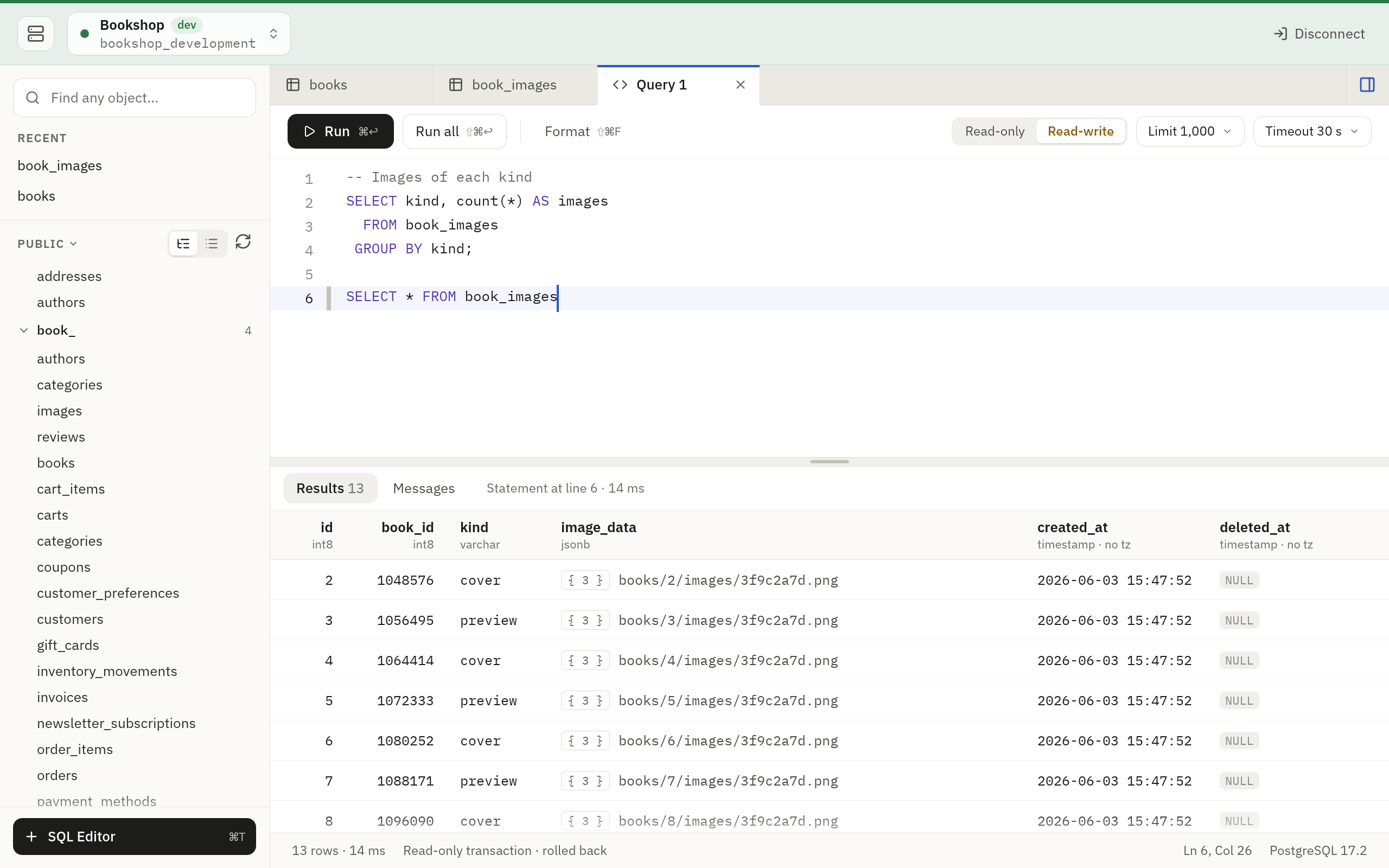
Two menus in the toolbar bound every run:
| Menu | Choices | Default |
|---|---|---|
| Limit | 100, 500, 1,000, 5,000 or 10,000 rows for each statement, or no limit | 1,000 |
| Timeout | 5, 15 or 30 seconds, 1 or 5 minutes, or no timeout | 30 seconds |
Your choice is the one of Settings › Editor, and every open tab follows it.
Read-only and read-write
The toolbar’s switch (Cmd/Ctrl+Shift+M; :ro and :rw in the Omarchy
look) sets what a run may do.
- Read-only. The run happens in a read-only transaction that is rolled back. Nothing is changed.
- Read-write. A run that changes data is one transaction. It is committed when every statement succeeded, and rolled back on the first error, on cancel and on timeout. A run that only reads is still read-only.
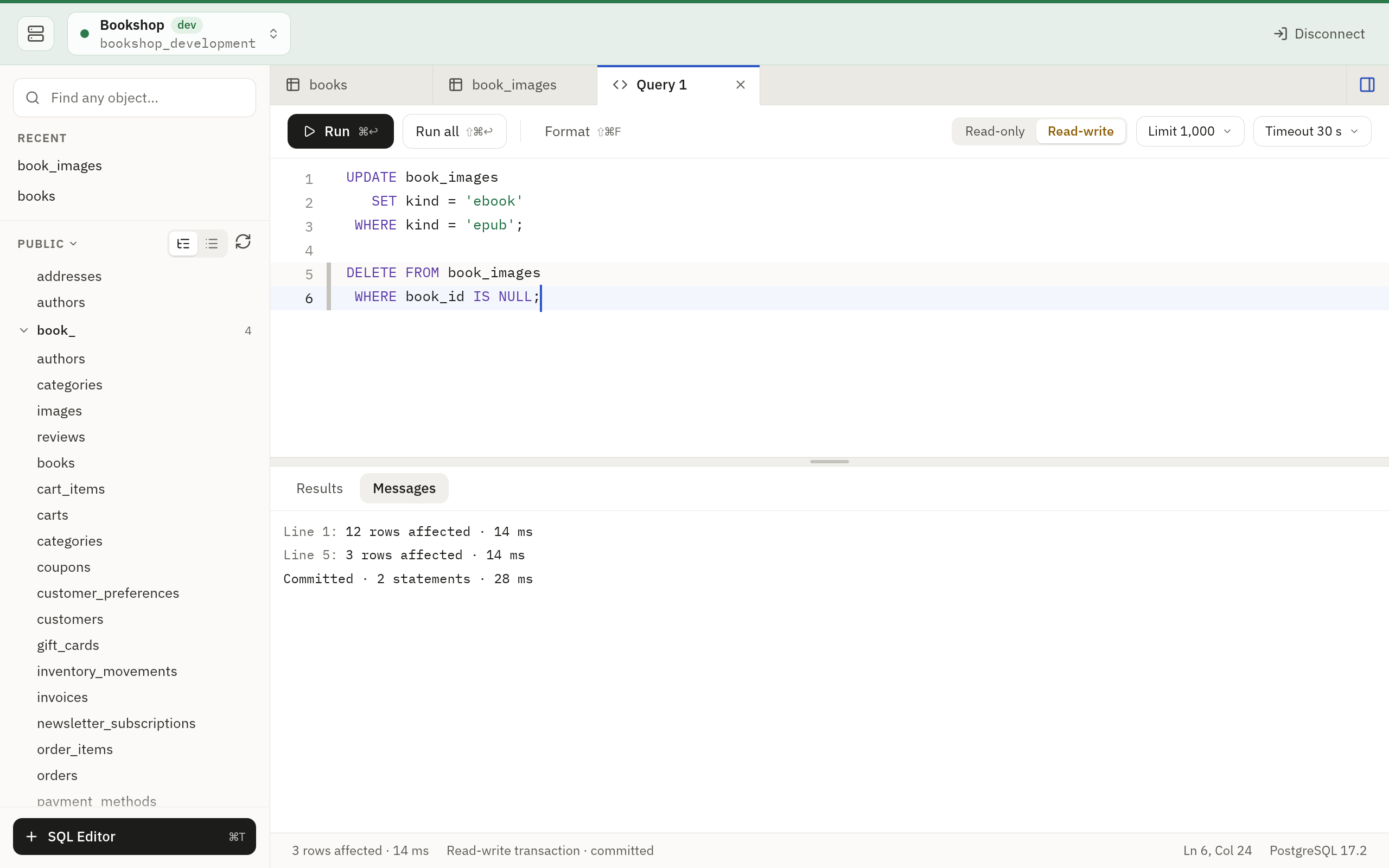
A new tab opens in Read-only. With New tabs run in set to Follow connection in Settings › Editor, it opens in Read-write on a writable connection that is not production. On a connection that opens read-only, and on any production connection, every run is read-only.
Because Tabletist runs your script in its own transaction, statements that
would leave it are refused, and then nothing runs. BEGIN, COMMIT,
ROLLBACK and SAVEPOINT are examples.
On MySQL, statements such as CREATE, ALTER and DROP are committed by
the server as they run, so they cannot be rolled back. The messages say
which lines were written.
Results and messages
Results shows the rows of the statement you ran. Select a row and press Cmd/Ctrl+Shift+R (Enter in the Omarchy look) to read every field of it in the row panel. When the limit cut a result short, it says “Limited to 1,000 rows”, and Show all runs that statement again, alone, with no limit (it keeps the timeout). It is offered for a run that only read, while the editor holds the text that ran and the tab is on the database it ran on.
When the timeout stopped a run, Messages says “Cancelled after 30 s” on
the statement it stopped, and Run without timeout runs the whole run
again with none (it keeps the row limit). It is offered when nothing of
the run was written and its transaction was rolled back: a read, or a
read-write run rolled back whole. A timeout of whole minutes reads
“1 min”, and one set in the file by hand, such as "90s", reads
“1 min 30 s”.
Messages has a line for every statement: how many rows it returned or changed and how long it took, or the database’s error with the statement’s line, and the column too when the database names the place. A read-write run ends with whether it was committed or rolled back.
Format
Format (Cmd/Ctrl+Shift+F; in the Omarchy look Esc, then =) lays
queries out in river style and
uppercases reserved words. It formats the statements in the selection, or
the whole script when nothing is selected. Only whitespace and the case of
keywords change.
Completion
Keywords, schemas, tables, views and the columns of the tables in your statement are offered while you type. Ctrl+Space asks for the list anywhere, and so does Cmd/Ctrl+I on macOS and Windows. Settings › Editor can have the list open only when you ask, or never.
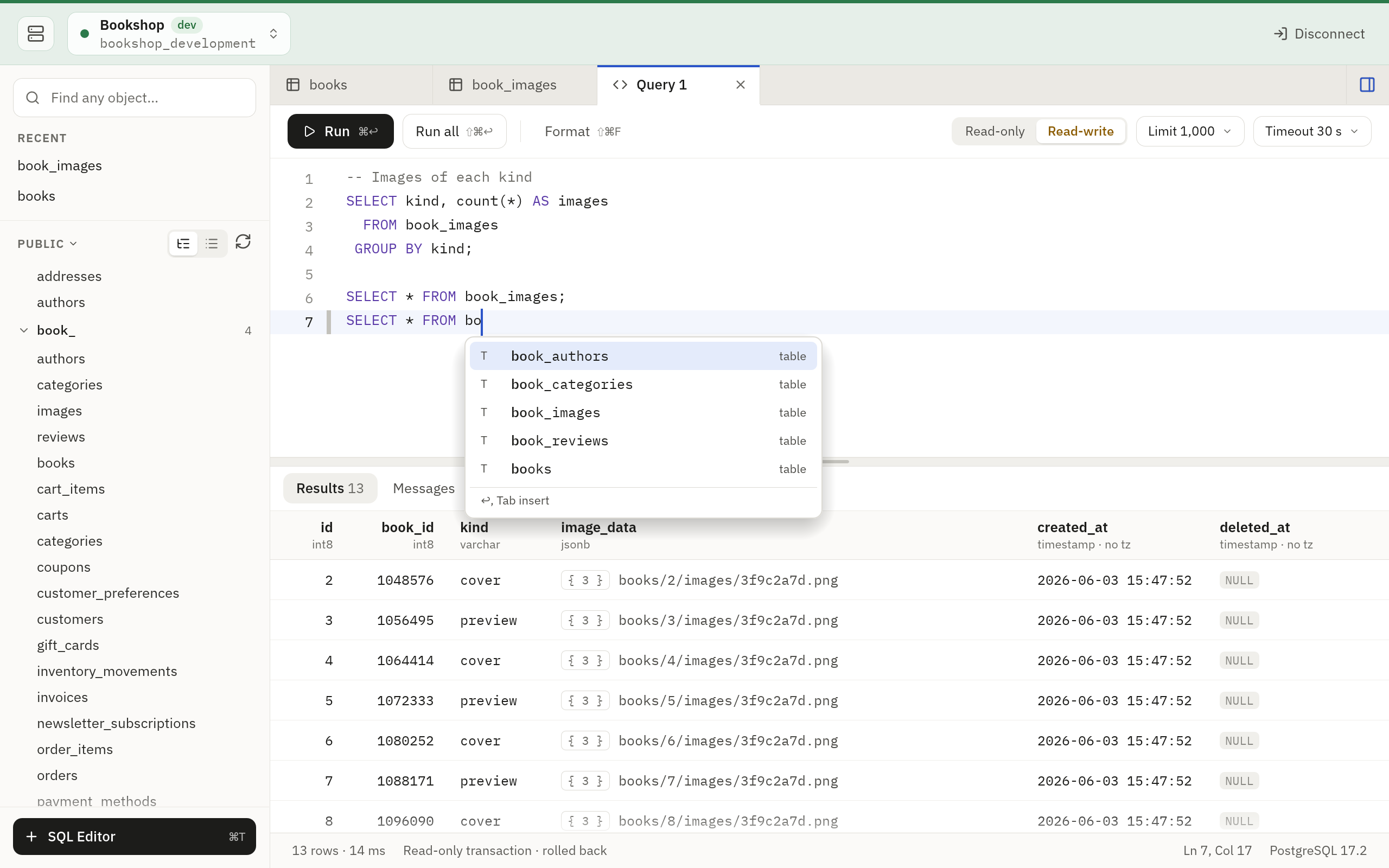
Tab accepts the highlighted row, and Esc closes the list. Enter accepts too once you moved in the list or asked for it. When the list opened by itself and its row is only a guess (it does not begin with what you typed), or is what you typed already, Enter stays a line break.
History
Each connection window has a History tab: every statement run on the
connection, the newest first and grouped by day. Show it with Cmd/Ctrl+Y,
View › History on macOS, the clock at the right of the sidebar’s SQL
Editor button, > History in quick open, or :history in the Omarchy
look. It never opens by itself, and closes like any tab.
It keeps every source, each marked as such:
- SQL editor: each statement as it was split and run, by its tab’s name. A run of three statements is three entries.
- Grid save: a table’s Save as one entry, the whole transaction, with the values you typed written in.
- Filter: the
SELECTa table ran for a filter or a sort you set, with the filter and the sort. - Agent: an agent’s run, marked in the accent colour. What the agent sent stays in the Agents Log alone: the entry keeps when it ran, the tool, its rows, how long it took and how it ended, and Show in Agents Log opens its call there. The agent’s name is read from the log while it holds the call. Once the log drops the call, the entry says it is no longer there.
Tabletist’s own reads of the schema, the row estimates and completion’s are not kept, nor is a table read with no filter or sort of yours.
Select an entry to see it whole. A read (SELECT, WITH that writes
nothing, EXPLAIN without ANALYZE, SHOW, and a filter’s query)
offers Run again, which opens a new SQL editor with it and runs it,
as a new tab runs: read-only by default, with the Editor’s row limit and
timeout, on the connection’s current database. On production, and on a
connection that opens read-only, that editor is read-only whatever the
settings. Errors and cancelled reads run again too. A write is never run
again from History: Open in SQL editor puts it in a new read-only
editor, which runs nothing until you switch it to read-write and run it.
Reapply filter opens a filter’s table with its filter and sort, and
Copy SQL copies the statement.
The filters above the list choose a source and a result, and Search
SQL… finds a text in the statements, in any case; an agent’s entry is
found by its agent and tool alone. In the Omarchy look / opens the same
filter as a line: plain words search the SQL, and source: and result:
choose.
The history is kept on this computer, never with a result’s rows: the last 1,000 statements of each connection, which Settings › Editor › Keep query history changes, or turns off. Clear history… in the tab deletes the connection’s history once you say so, and the one in Settings › Editor every connection’s. A grid save’s entry holds the values you typed, so clear the history to delete them from this computer.