
Getting Started
Look around first
You do not need a database to try Tabletist. Start it from a terminal with
--demo:
tabletist --demo
It opens a small SQLite database with a few tables, a view, and one table of 100,000 rows for trying paging, sorting and cancel. The demo keeps everything in a throwaway folder that is removed when you quit, and it never touches your saved connections or your keyring.
Add a connection
Open Tabletist. With nothing saved yet, the picker says
No connections yet. Press Cmd/Ctrl+N for a new connection (n in the
Omarchy look).
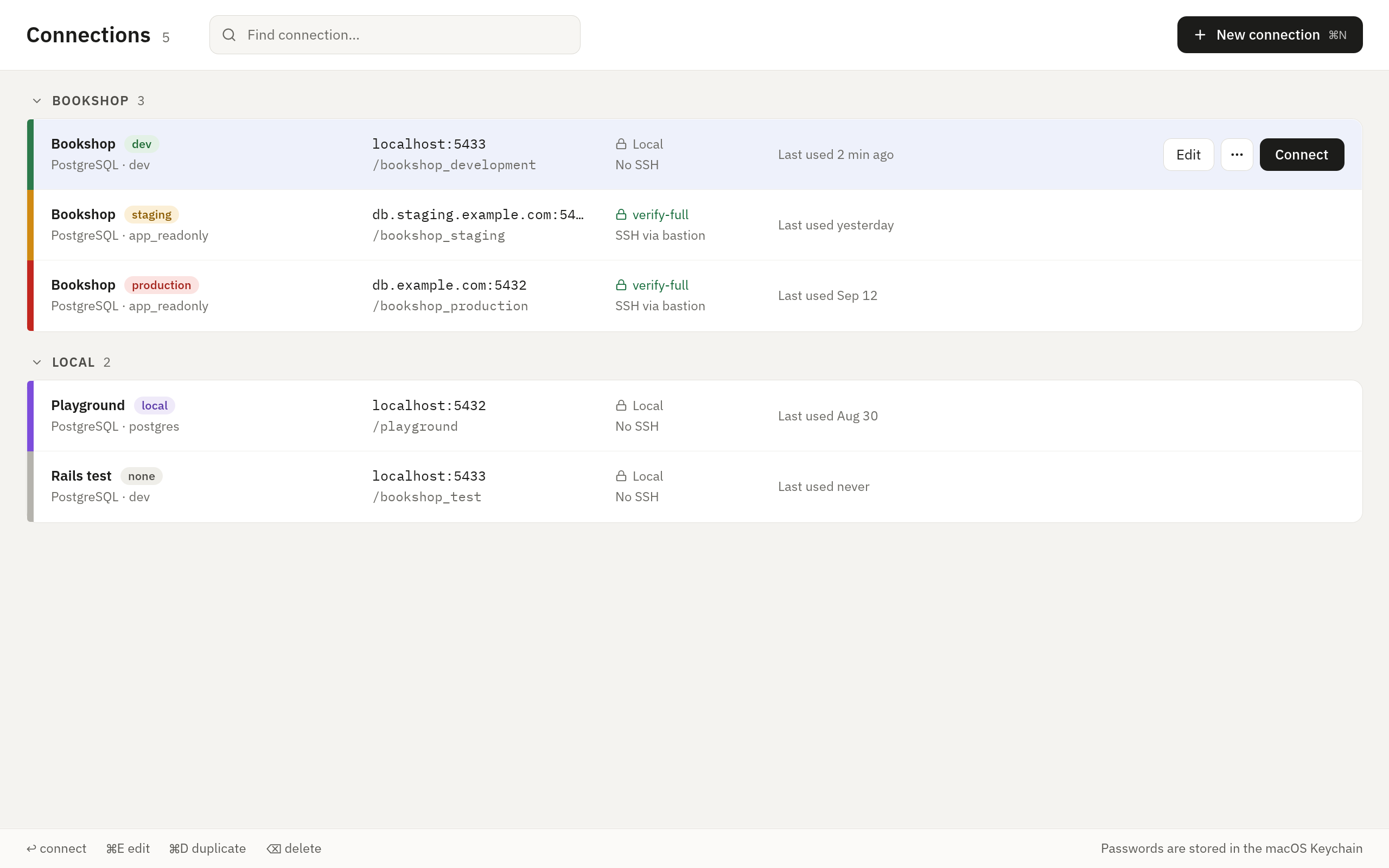
- Give it a Name and pick its Type: SQLite, PostgreSQL or MySQL.
- For SQLite, choose the file. For a server, fill in Host, Port, Database and User.
- Pick an Environment. It sets the connection’s color, and production opens read-only unless you turn that off.
- Press Test to check it, then Save & Connect.
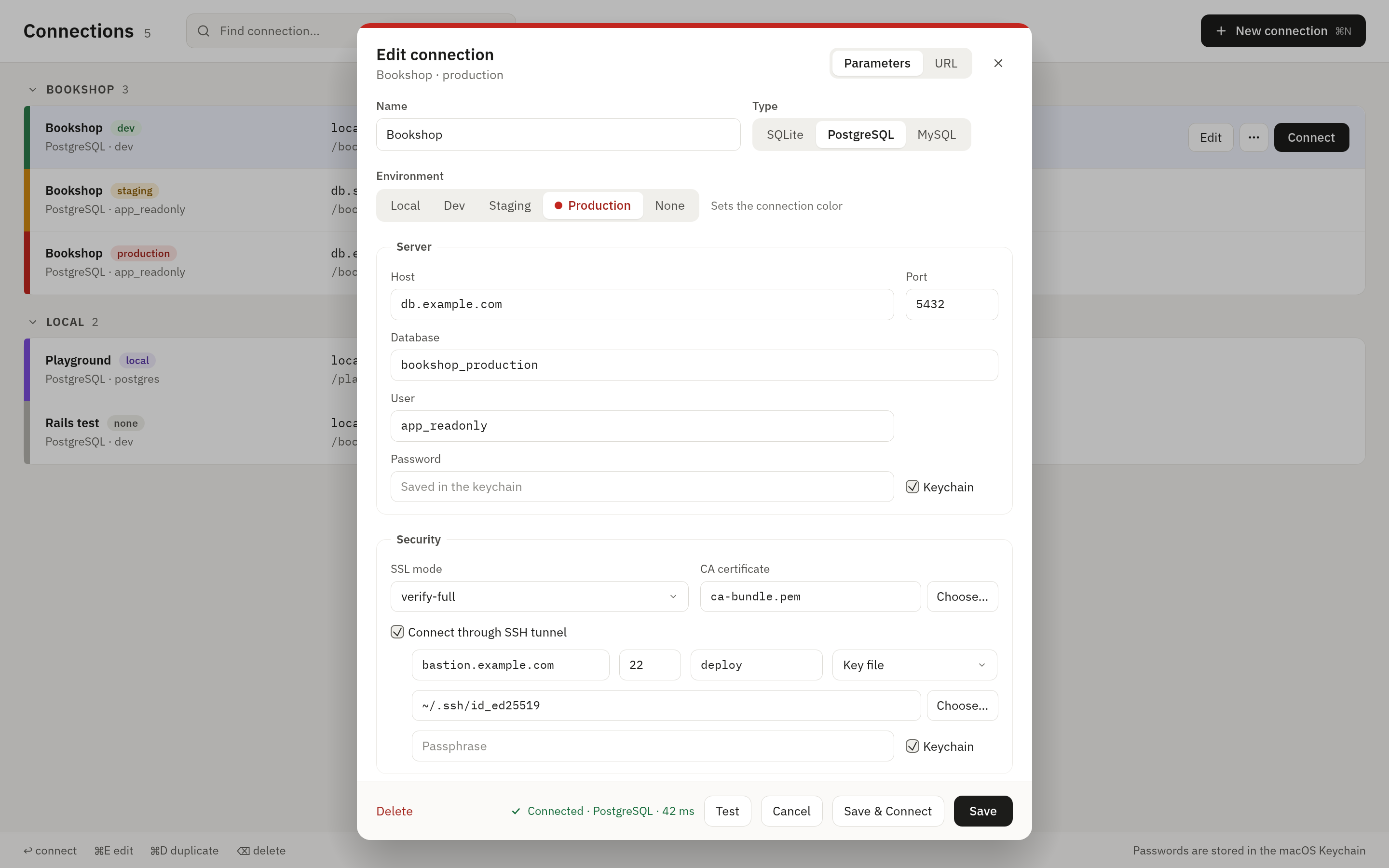
If you have a connection URL, paste it in the URL tab instead and press
Fill (in the Omarchy look, press u for Paste URL). For example:
postgres://app@db.example.com:5432/shop?sslmode=verify-full
TLS, SSH tunnels and where passwords are kept are covered in Connections.
Find your way around
- The header holds a chip for each open connection. Click one to switch, or press Cmd/Ctrl+1 to 9 (Ctrl+Shift+1 to 9 in the Omarchy look).
- The sidebar lists the tables and views of one schema. On macOS and Windows the ones you opened recently are on top. Cmd/Ctrl+B shows or hides it.
- Quick open (Cmd/Ctrl+P) finds any table or view by name, from anywhere in the window.
- Tabs hold the tables and SQL editors you have open.
- The row panel on the right shows every field of the selected row. Cmd/Ctrl+Shift+R shows or hides it.
Press ? for a list of the keys, when no text field has the keyboard and
no dialog is open. They are described in
Keyboard Shortcuts.